

This documentation provides all the details you need to use the Kofejob theme, understand how Kofejob is structured, and perform the most common tasks. If you require further assistance on topics not covered in this documentation, please contact us via our support forum.
We assume that you already have WordPress installed and ready to use. If you do not, please see the WordPress Instructions section below to help you get started.
To use the Kofejob theme, you need WordPress 6.4 or higher, PHP 8.0 or higher, and MySQL 5.6 or higher. Apart from the necessary WordPress requirements, the following server configuration settings are recommended to ensure the theme works properly.
- WordPress Before Install – general info before you install WordPress.
- WordPress Requirements – general info for WordPress requirements.
- WordPress Installation – general info about WordPress and installation instructions.
- WordPress Lessons – general lessons for WordPress.
To use the Kofejob WP theme, you need WordPress 6.4 or higher, PHP 8.0 or higher, and MySQL 5.6 or higher. This theme has been tested on PHP 8.0, 8.1, and 8.2. PHP 7.x is not supported. In addition to the necessary WordPress requirements, the following server configuration settings are recommended to ensure the theme works properly.
- WordPress – Version 6.4 or higher (tested up to 6.7)
- PHP – Version 8.0 or higher (PHP 8.2 recommended)
- MySQL – Version 5.6 or higher ( OR MariaDB version 10.1 or higher)
- memory_limit – 512M or higher
- max_execution_time – 300 or higher
- upload_max_filesize – 256M or higher
If you are not sure about your current server configuration, you can use the following guide to adjust the settings as needed. Changing server requirements. We still recommend contacting your hosting provider for assistance with these changes.
We assume that your WordPress website is already set up. The next step is to install the theme. To get started, download the full package from your Envato / ThemeForest Downloads page and locate the Kofejob theme.
The downloaded package contains:
- kofejob.zip – the installable parent theme file
- kofejob-child.zip – the child theme (use this for all customisations)
- documentation/ – this documentation
The Kofejob Core and Kofejob Widgets plugins are bundled inside the theme at kofejob/inc/tgm-activation-plugin/. They are registered and installed automatically via the TGM Plugin Activation library. You do not need to upload these plugins manually — WordPress will prompt you to install them as required plugins immediately after you activate the theme.
There are two ways to install the theme in your WordPress environment:
FTP Client:
You can use an FTP client (e.g., FileZilla) to upload the theme and plugins directly to your server.
Through WordPress Admin:
You can install it directly using the WordPress theme upload interface (recommended for most users).
Step 1:
Log into your web server with FTP client software (e.g., FileZilla).
Step 2:
Unzip the downloaded package. Locate kofejob.zip inside the package and unzip it to get the kofejob theme folder.
Step 3:
Upload the extracted kofejob theme folder to wp-content/themes/ on your server.
Step 4:
Activate the theme. Go to Appearance → Themes and click Activate on Kofejob.
Step 5 – Install bundled plugins via FTP:
The downloaded package includes a /kofejob/inc/tgm-plugin-activation/ folder containing the Kofejob Core and Kofejob Widgets plugin ZIPs. Unzip each and upload the extracted plugin folders to wp-content/plugins/. Then activate each plugin via Plugins → Installed Plugins in WordPress Admin.
Before you start importing the demo content, make sure you have installed all the required plugins so that the demo content imports properly. Install and activate each plugin one at a time in the order listed below.
Note: Install & Activate plugins one by one in the order shown.
| Plugin Name | Source | Version Tested | Free / Premium |
|---|---|---|---|
| kofejob Core | Bundled inside theme — auto-prompted via TGM Plugin Activation (inc/tgm-activation-plugin/) |
1.0 | Bundled with theme |
| Kofejob Elementor | Bundled inside theme — auto-prompted via TGM Plugin Activation (inc/tgm-activation-plugin/) |
1.0 | Bundled with theme |
| Redux Framework | WordPress.org | 4.4.x | Free |
| WooCommerce | WordPress.org | 8.x | Free |
| Elementor | WordPress.org | 3.x | Free |
| One Click Demo Import | WordPress.org | 3.x | Free |
| Contact Form 7 | WordPress.org | 5.x | Free |
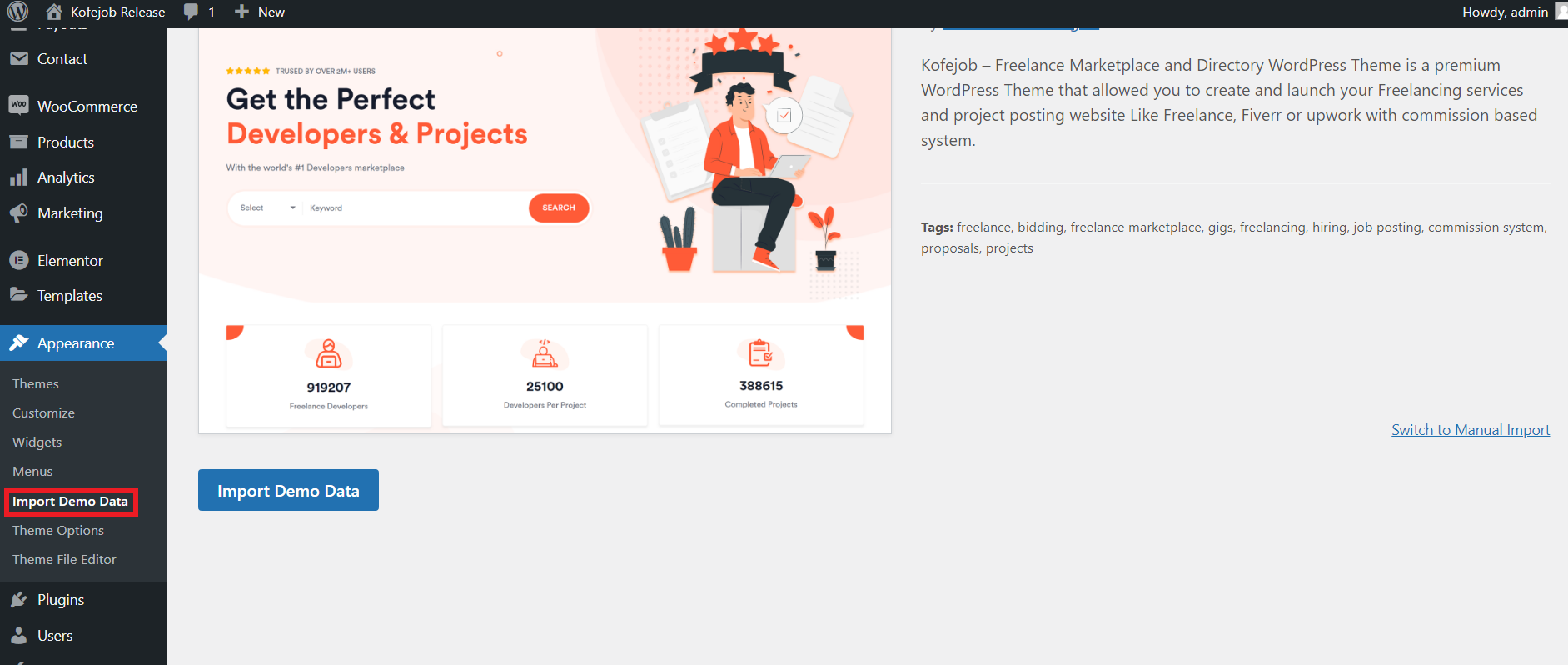
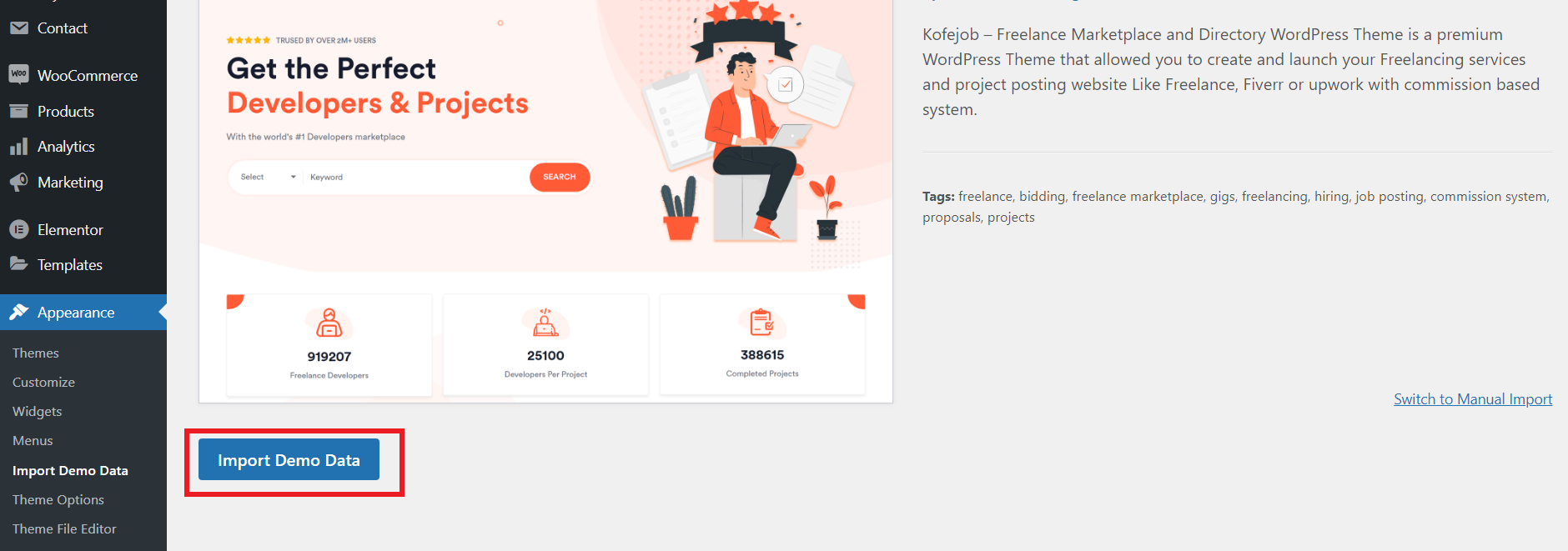
To import the demo, go to Appearance → Import Demo Data. Click Import Demo Data, then click the Import Demo button and wait a few minutes for the process to complete.
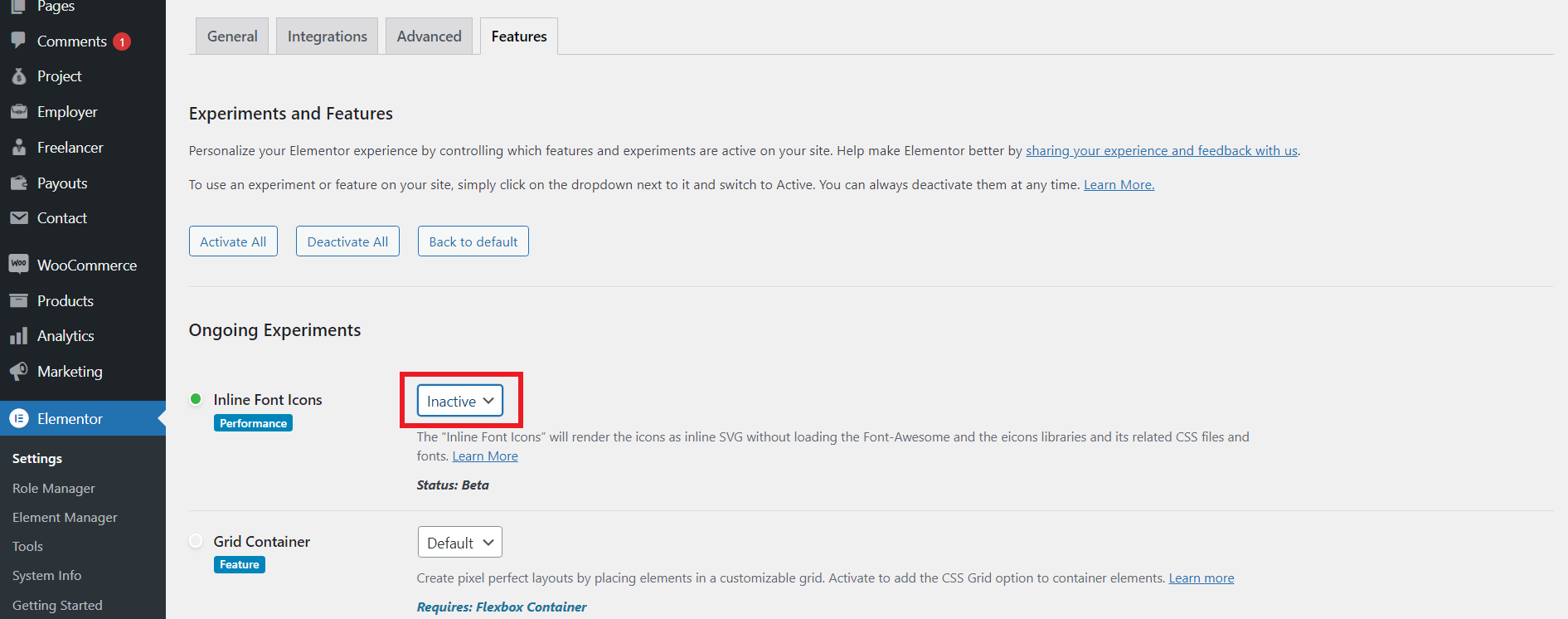
After importing the demo content, go to Elementor → Settings → Features Tab → Inline Font Icons and change the setting from DEFAULT to INACTIVE. This is required for icons to render correctly.
If the demo import times out or shows a white screen, try the following:
- Add
define( 'WP_MEMORY_LIMIT', '512M' );to yourwp-config.phpfile. - Ask your host to set
max_execution_timeto 300 or higher. - Re-run the import from Appearance → Import Demo Data.
- If images are missing after import, go to Tools → Import and re-run the media import.
The downloaded package is organised as follows. All custom modifications should be made in the kofejob-child theme — never edit the parent theme files directly, as they will be overwritten on update.
kofejob-package/
├── kofejob.zip            ← Installable parent theme
├── kofejob-child.zip      ← Installable child theme (use for all customisations)
└── documentation/ ← This documentationThe Kofejob Core and Kofejob Widgets plugins are bundled inside the theme at kofejob/inc/tgm-activation-plugin/. There is no separate plugins folder in the download package. After you activate the theme, WordPress will automatically display a prompt to install these required plugins via the TGM Plugin Activation library.
Never modify files inside the kofejob/ parent theme folder directly. Always use the kofejob-child theme or WordPress hooks/filters for customisations.
A child theme is required for any customisations you want to survive theme updates. The download package includes a pre-built child theme — kofejob-child.zip — which you should install and activate instead of modifying the parent theme directly.
Installing the Child Theme
- Go to Appearance → Themes → Add New → Upload Theme.
- Upload
kofejob-child.zipand click Install Now. - Click Activate. The parent Kofejob theme must also be installed (but does not need to be active).
Child Theme functions.php — Minimum Setup
The child theme's functions.php correctly enqueues the parent theme styles. The essential code is:
<?php
/**
 * Kofejob Child Theme functions.php
 */
add_action( 'wp_enqueue_scripts', 'kofejob_child_enqueue_styles' );
function kofejob_child_enqueue_styles() {
    wp_enqueue_style(
        'kofejob-parent-style',
        get_template_directory_uri() . '/style.css'
    );
    wp_enqueue_style(
        'kofejob-child-style',
        get_stylesheet_uri(),
        array( 'kofejob-parent-style' )
    );
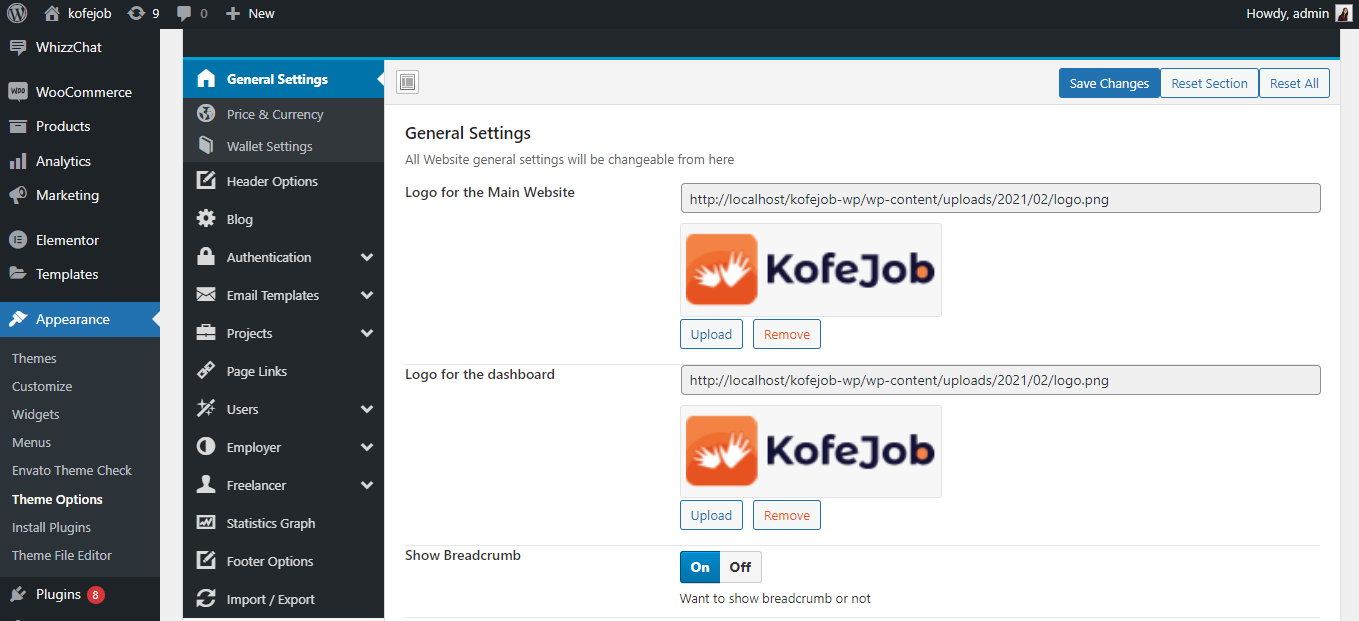
}Using the Logo settings theme options you can manage the change logo of the website.
Select Logo for the dashboardUsing the Logo settings theme options you can manage the change logo for the dashboard.
Show BreadcrumbUsing the Show Breadcrumb settings theme options you can show the breadcrumb overall site.
Turn On Kofejob Demo ModeUsing the Turn On Kofejob Demo Mode settings theme options it will restrict adding the data of the website.
Admin can manage header settings from the Appearance → Header Options section.
You can select the Header Type, set the Primary Button Text and Secondary Button Text displayed to users without login, and assign their respective page links.
You can also configure the Employer Button Text shown after login and click Save Changes to apply the header updates to your site.

Using the Currency settings theme options you can manage the change currency symbol of the price.
Where to Show the currency?Using the Where to Show the currency? settings theme options you can manage the change the position of symbol before and after the price.
Number of decimal pointsUsing the Number of decimal points settings theme options you can enter after how many digits show the decimal points of the price.
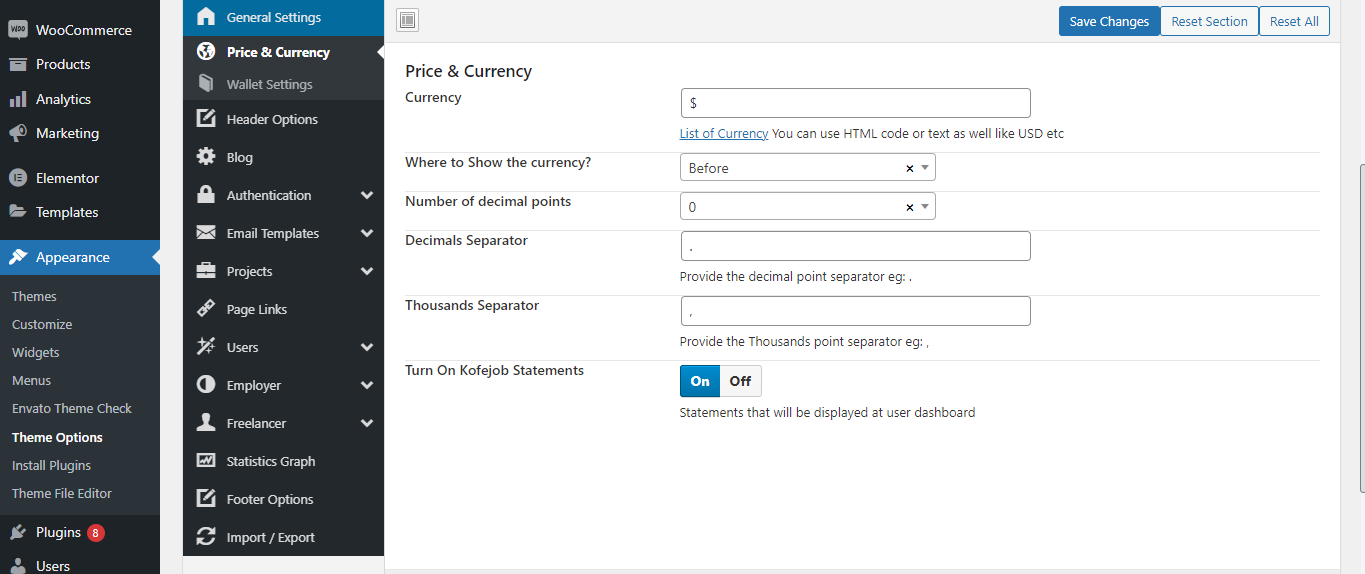
Using the Decimals Separator settings theme options you can enter the decimal seperator like dot(.) and comma(,).
Thousands SeparatorUsing the Thousands Separator settings theme options you can enter the Thousand seperator like dot(.) and comma(,).
Turn On Kofejob StatementsUsing the Turn On Kofejob Statements settings theme options it will display the payments.
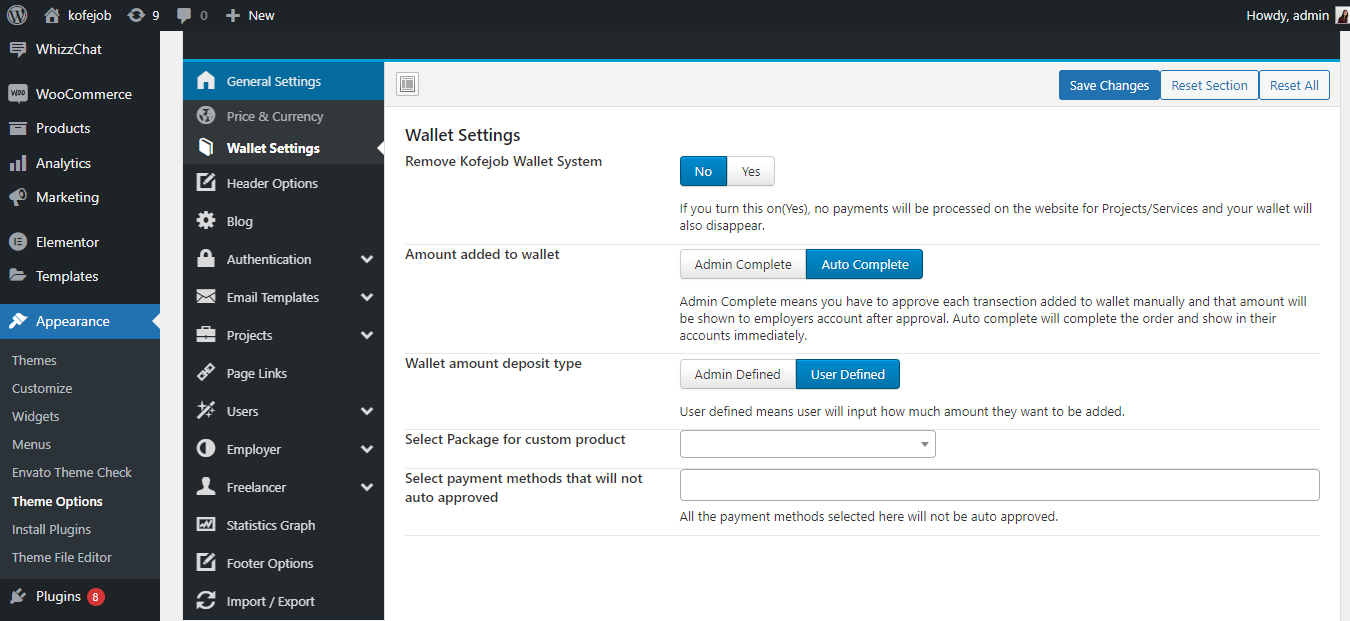
If you turn this on(Yes), no payments will be processed on the website for Projects and your wallet will also disappear.
Amount added to walletAdmin Complete means you have to approve each transection added to wallet manually and that amount will be shown to employers account after approval. Auto complete will complete the order and show in their accounts immediately.
Wallet amount deposit typeUser defined means user will input how much amount they want to be added.
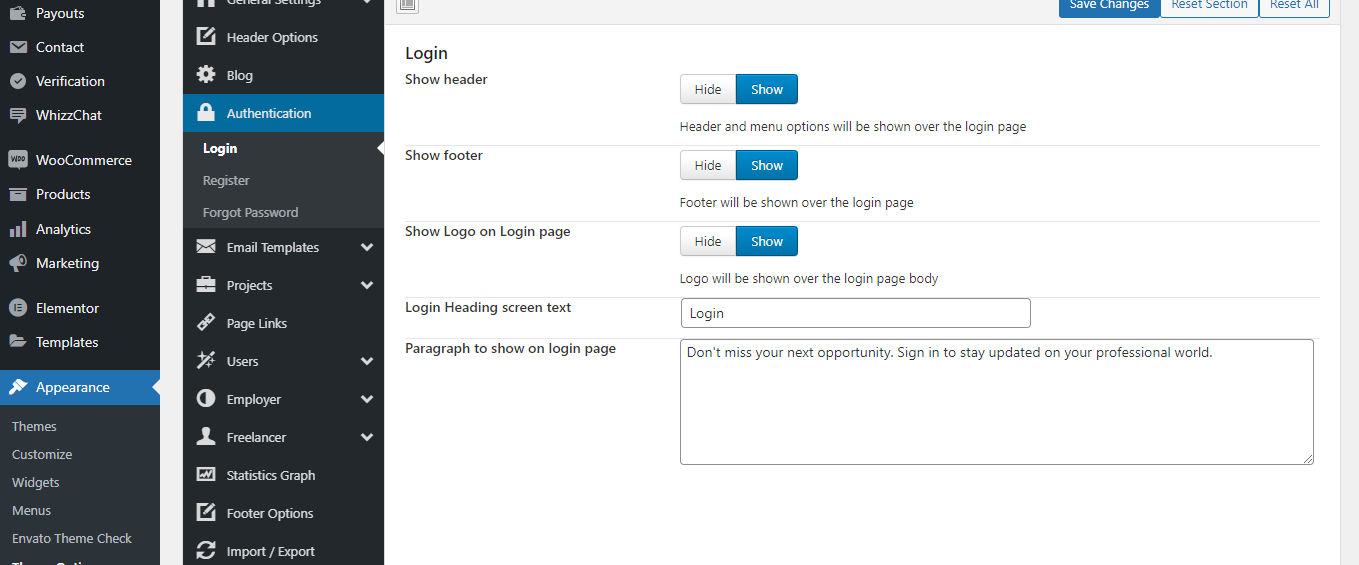
Header and menu options will be shown over the login page
Show footerFooter will be shown over the login page
Show Logo on Login pageLogo will be shown over the login page body
Login Heading screen textIt show the text above the login form
Paragraph to show on login pageIt show the text description above the login form
Allowed registration type
Show headerHeader and menu options will be shown over the register page
Show footerFooter will be shown over the register page
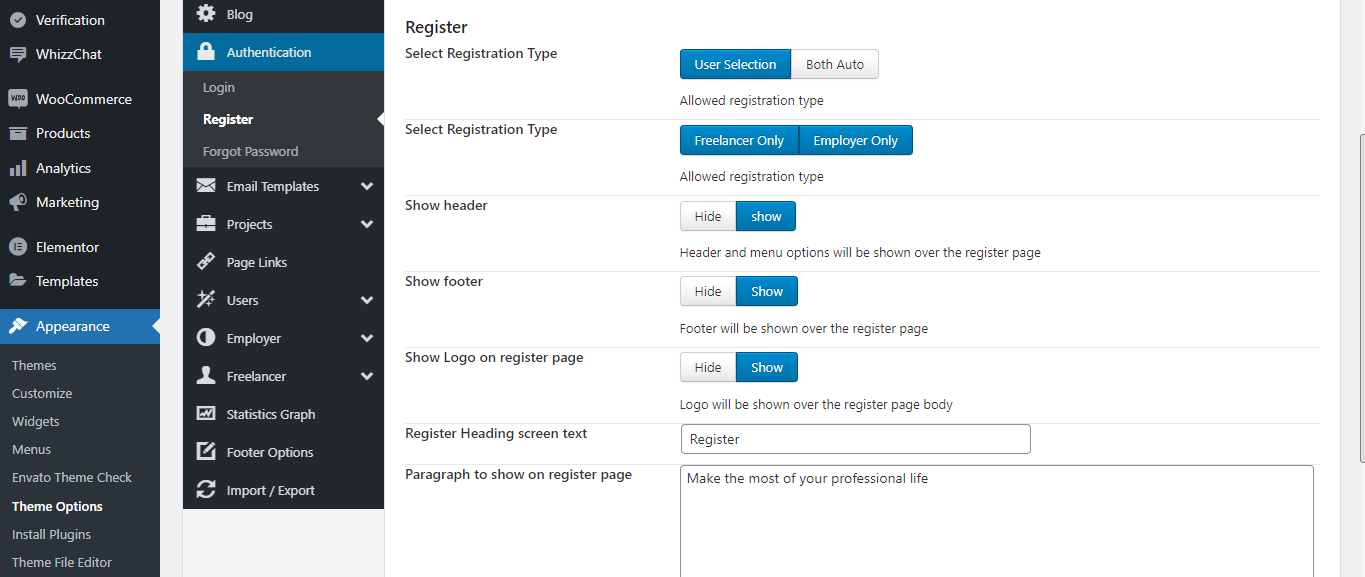
Logo will be shown over the register page body
Login Heading screen textIt show the text above the register form
Paragraph to show on register pageIt show the text description above the register form
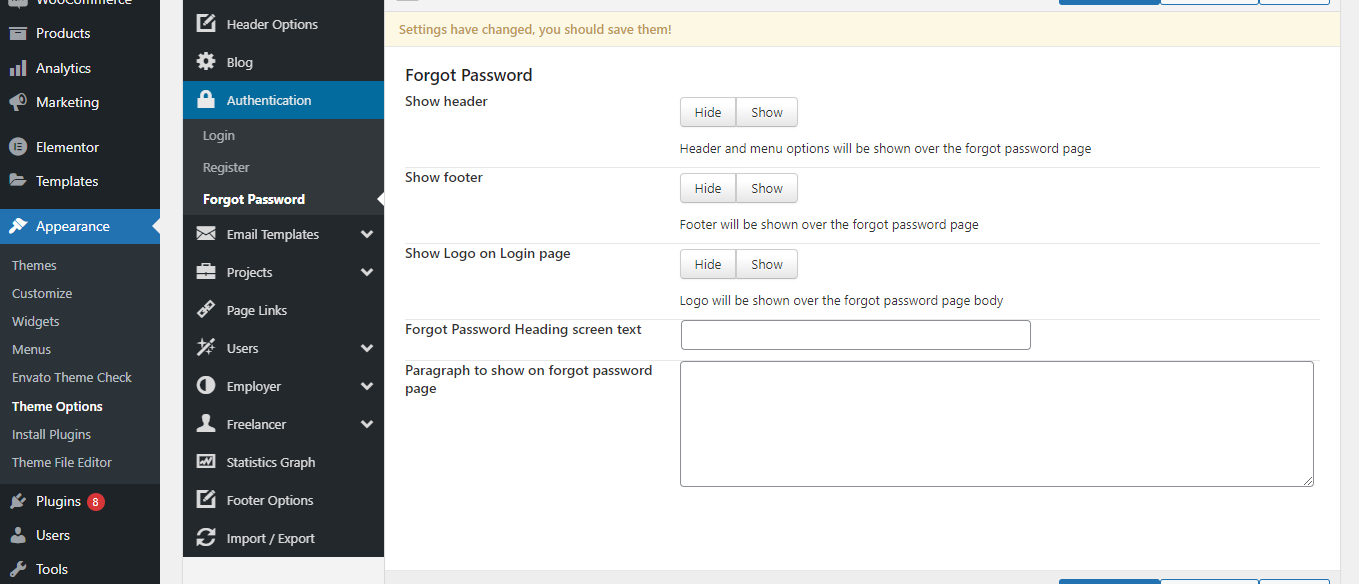
Header and menu options will be shown over the forgot password page
Show footerFooter will be shown over the forgot password page
Show Logo on Login pageLogo will be shown over the forgot password page body
Login Heading screen textIt show the text above the forgot password form
Paragraph to show on forgot password pageIt show the text description above the forgot password form
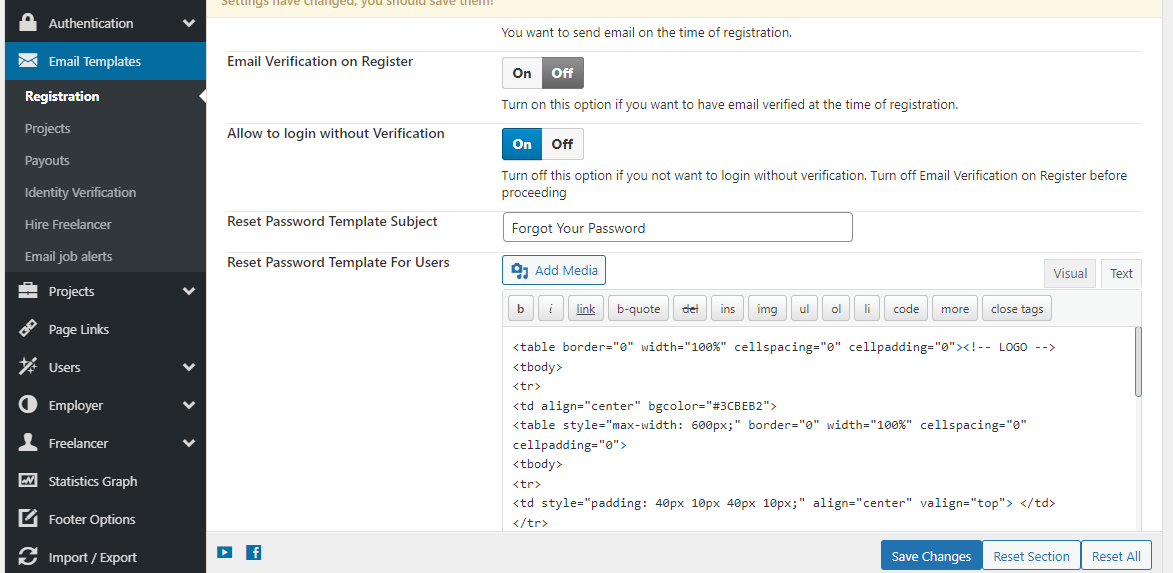
Admin can manage email templates from the Appearance → Email Templates → Registration section.
You can enable Email Verification on Register and toggle Allow Login Without Verification based on your site's security preference.
You can also customize the Reset Password Template Subject and edit the full Reset Password Email Template for users using the built-in editor.
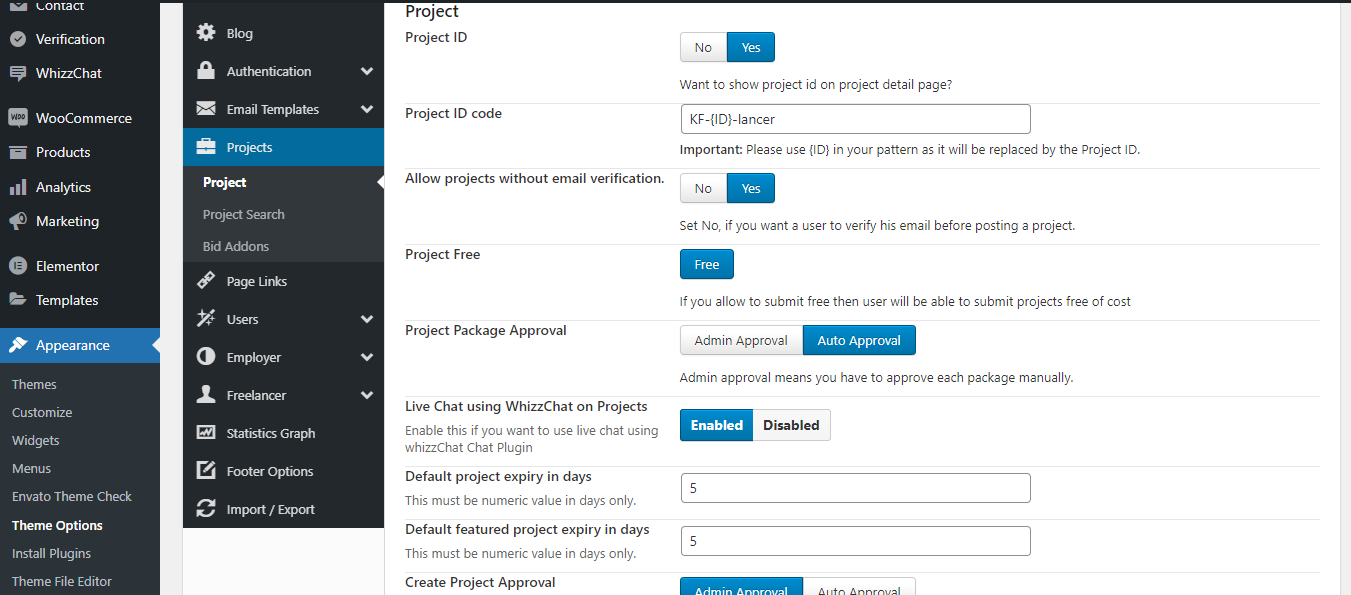
Admin can manage project settings from the Appearance → Theme Options → Projects section.
You can configure Project ID, enable Project Free submissions, set Project Package Approval to Admin or Auto, enable Live Chat, and set the Default Project Expiry Days.
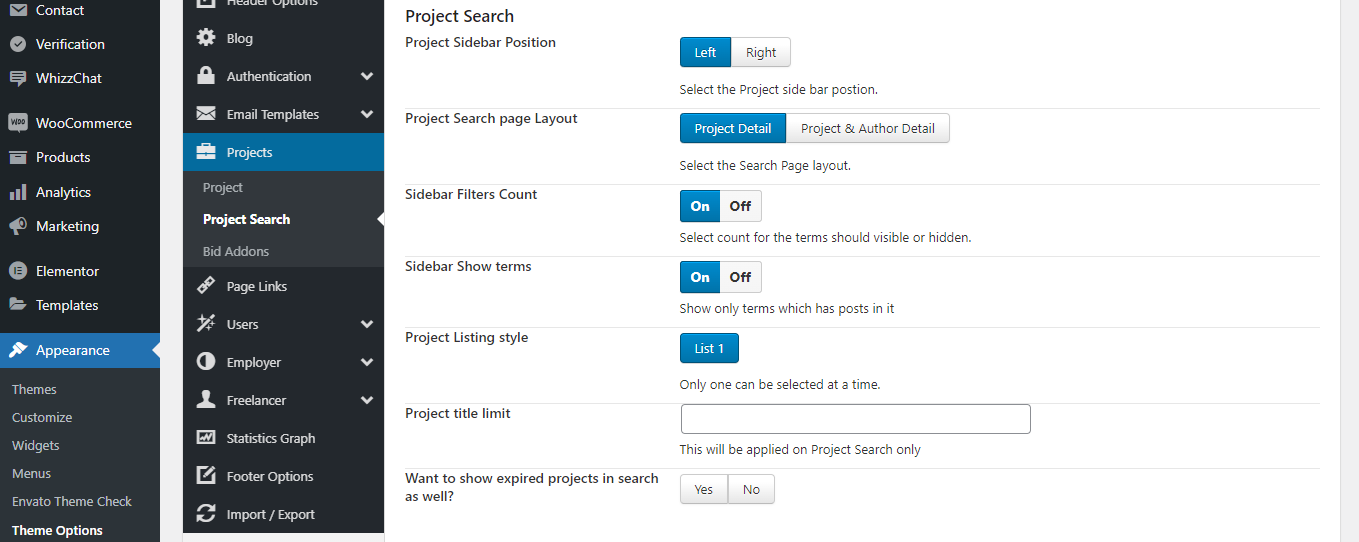
Under Project Search, you can control the Sidebar Position, Search Page Layout, Project Listing Style, and toggle options like Sidebar Filters Count and Show Expired Projects in search results.
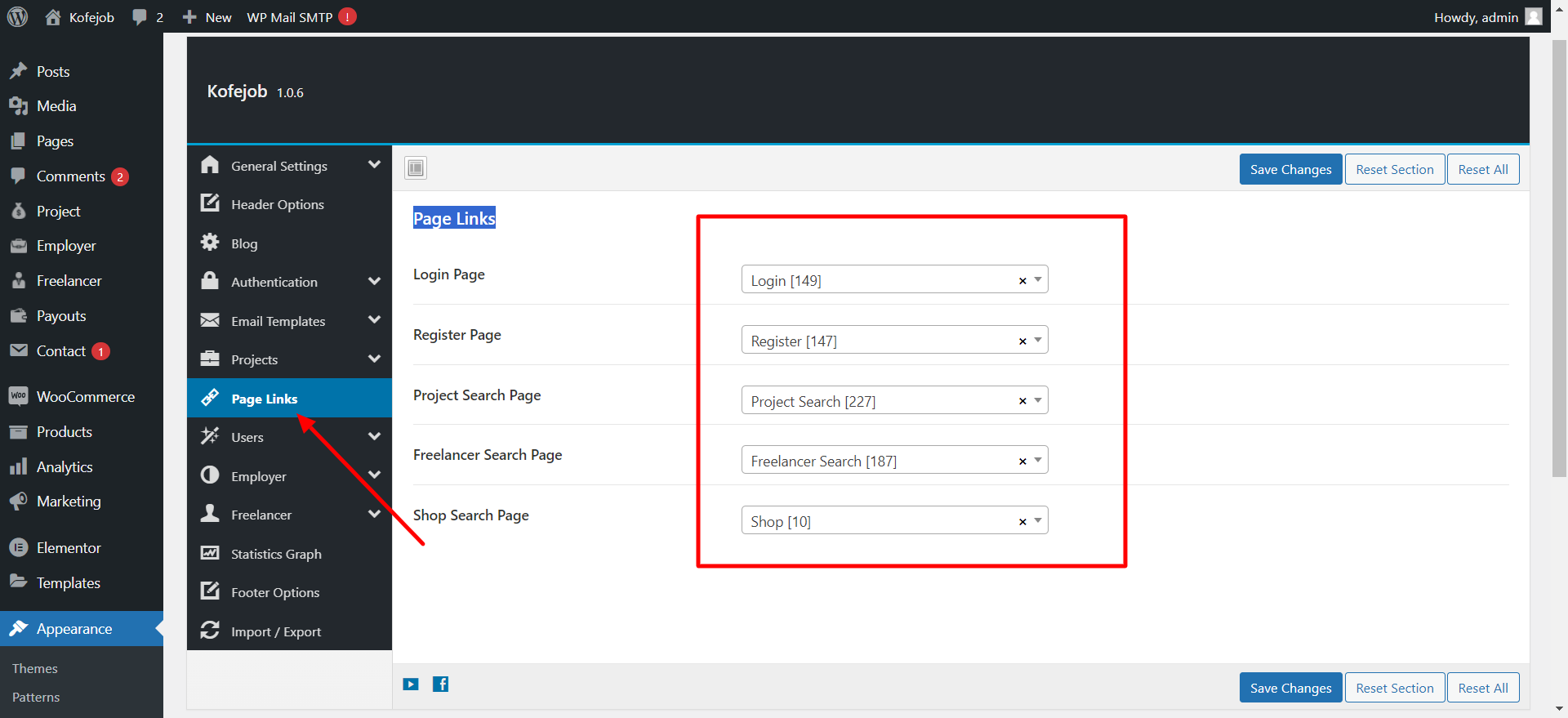
Admin can manage all page assignments from the Appearance → Theme Options → Page Links section.
You can assign pages for Login, Register, Project Search, Freelancer Search, and Shop Search from this section.
Once all pages are assigned, click Save Changes to apply the page link settings across your site.
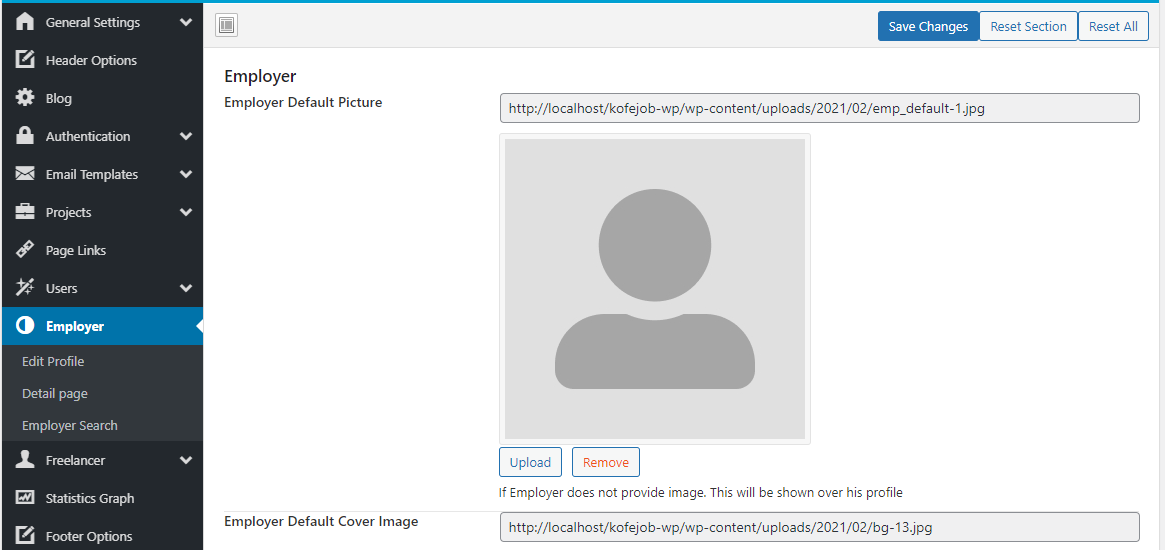
Using these settings, You can set the employer default picture and cover image,employer profile clickable and social links from theme options.
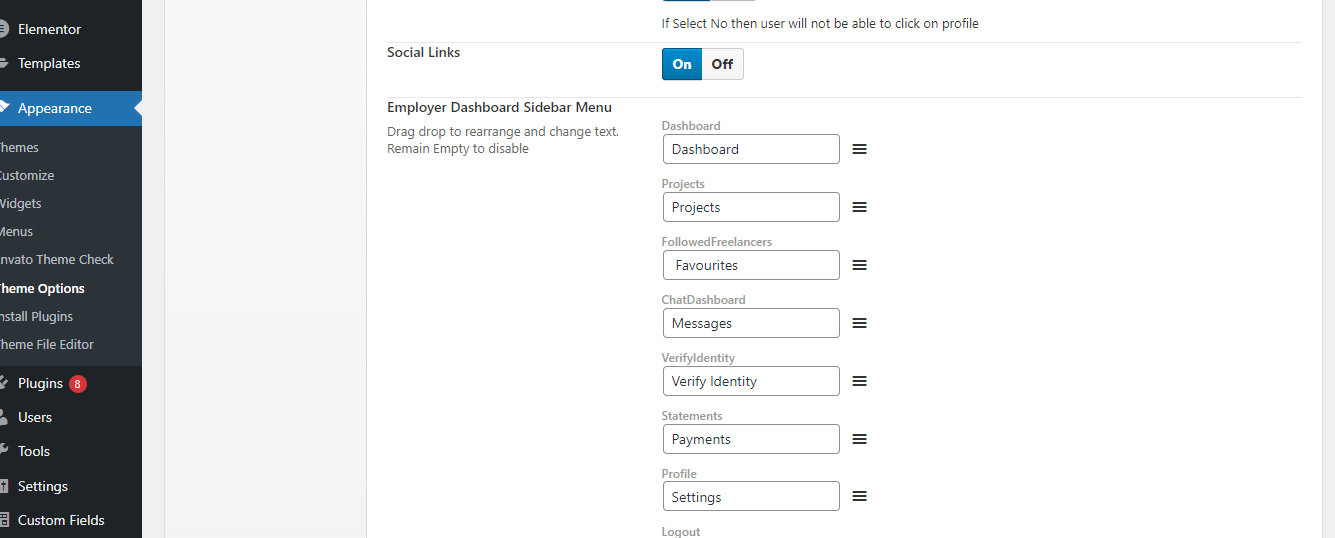
Employer Dashboard Sidebar MenuBy using this settings you can change the employer dashboard sidebar menu items text.
Employer Edit ProfileUsing these settings,you can set the fields required or not.
Employer Detail pageUsing these settings,you can set show contact detail or not.
Employer SearchUsing these settings,you can set employer sidebar settings.
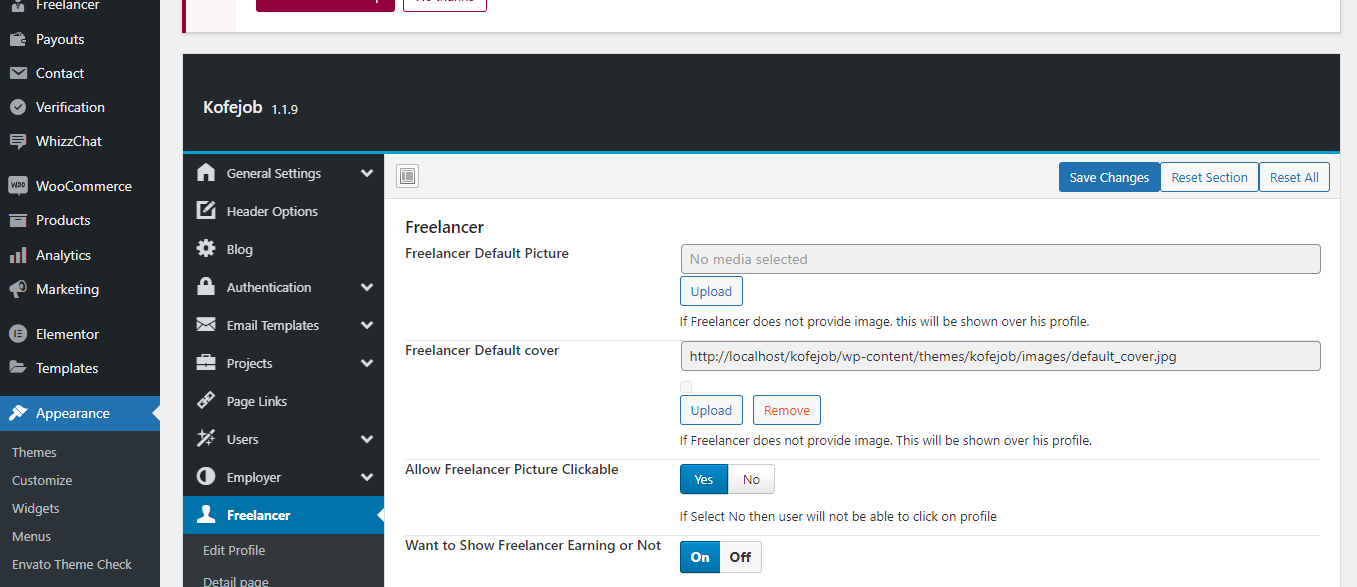
Using these settings, You can set the freelancer default picture and cover image,freelancer profile clickable and Want to Show Freelancer Earning or Not from theme options.
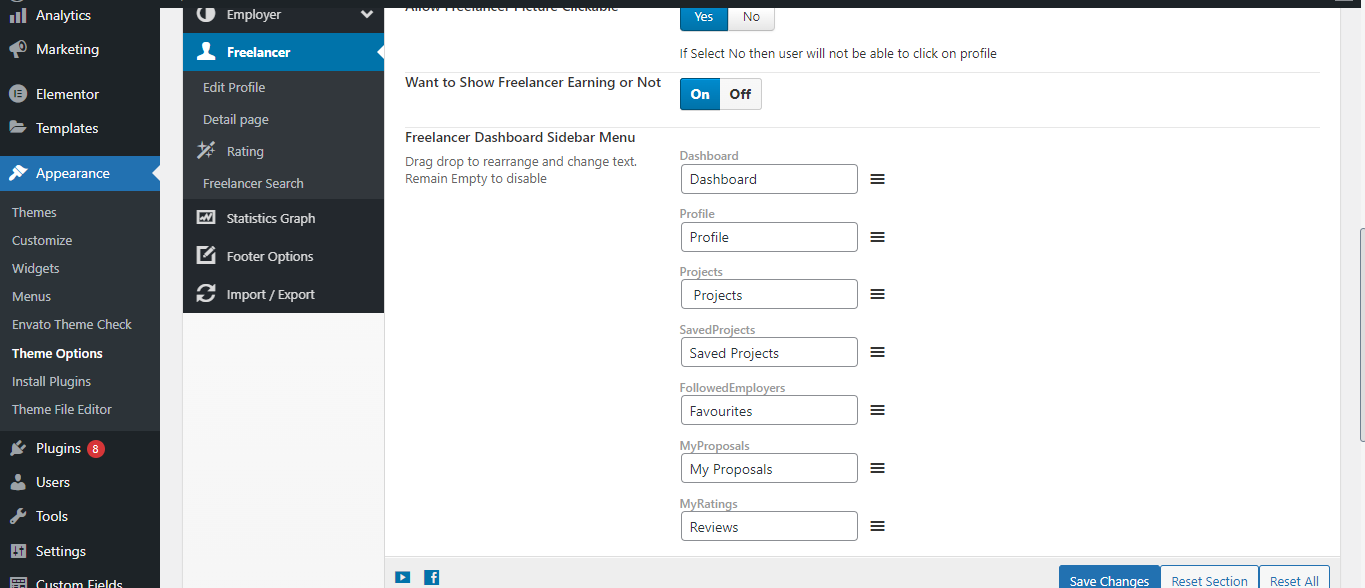
Freelancer Dashboard Sidebar MenuBy using this settings you can change the freelancer dashboard sidebar menu items text.
Freelancer Edit ProfileUsing these settings,you can set the fields required or not.
Freelancer Detail pageUsing these settings,you can set show contact detail or not.
Freelancer Ratingusing these settings,you can change rating text for freelancer.
Freelancer SearchUsing these settings,you can set freelancer sidebar settings.
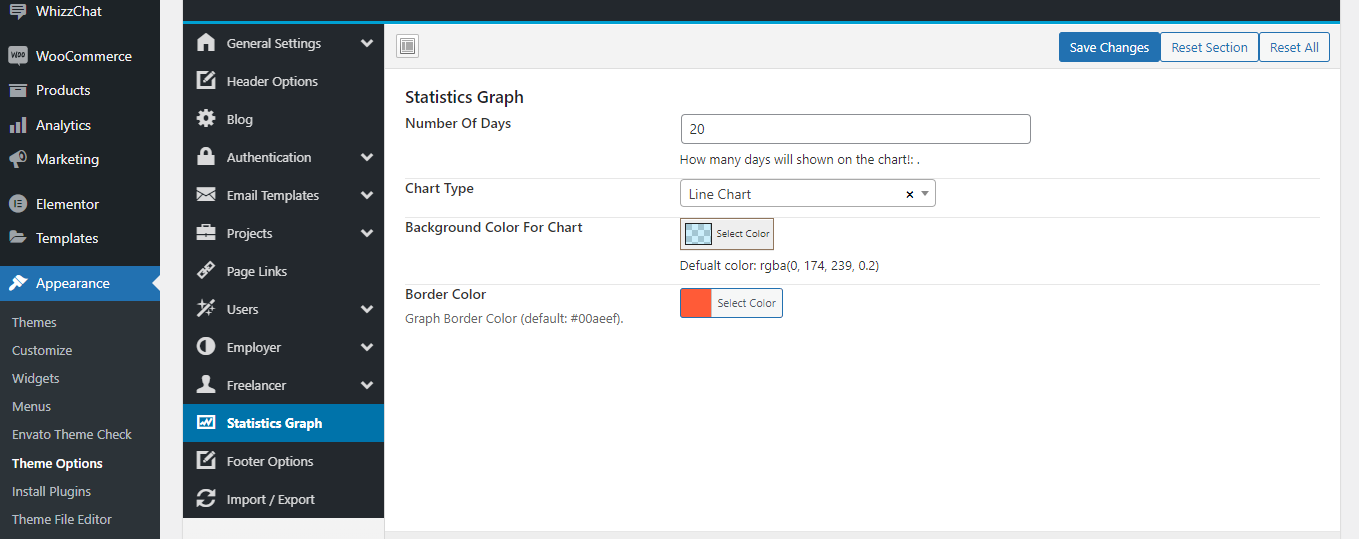
Admin can manage the statistics graph settings from the Appearance → Theme Options → Statistics Graph section.
You can set the Number of Days to display on the chart and select the Chart Type such as Line Chart to suit your preference.
You can also customize the Background Color and Border Color of the chart to match your site's branding.
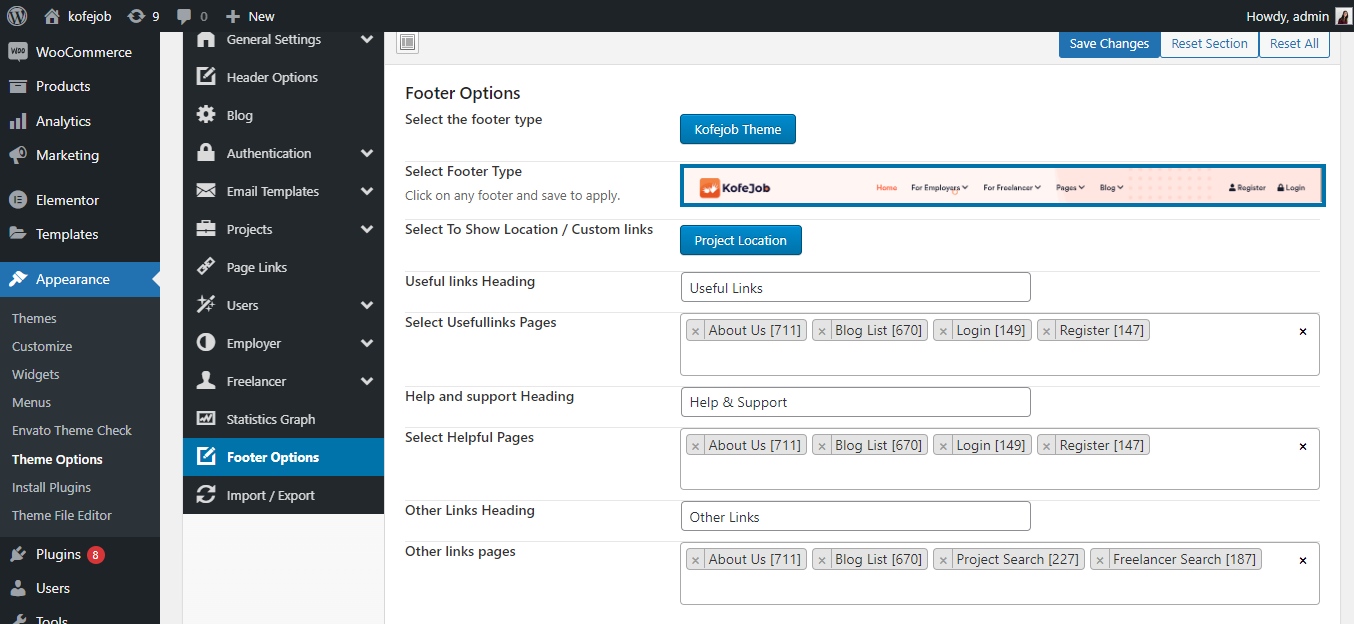
Admin can manage footer settings from the Appearance → Theme Options → Footer Options section.
You can select the Footer Type, assign pages for Useful Links, Help & Support, and Other Links sections to organize the footer navigation.
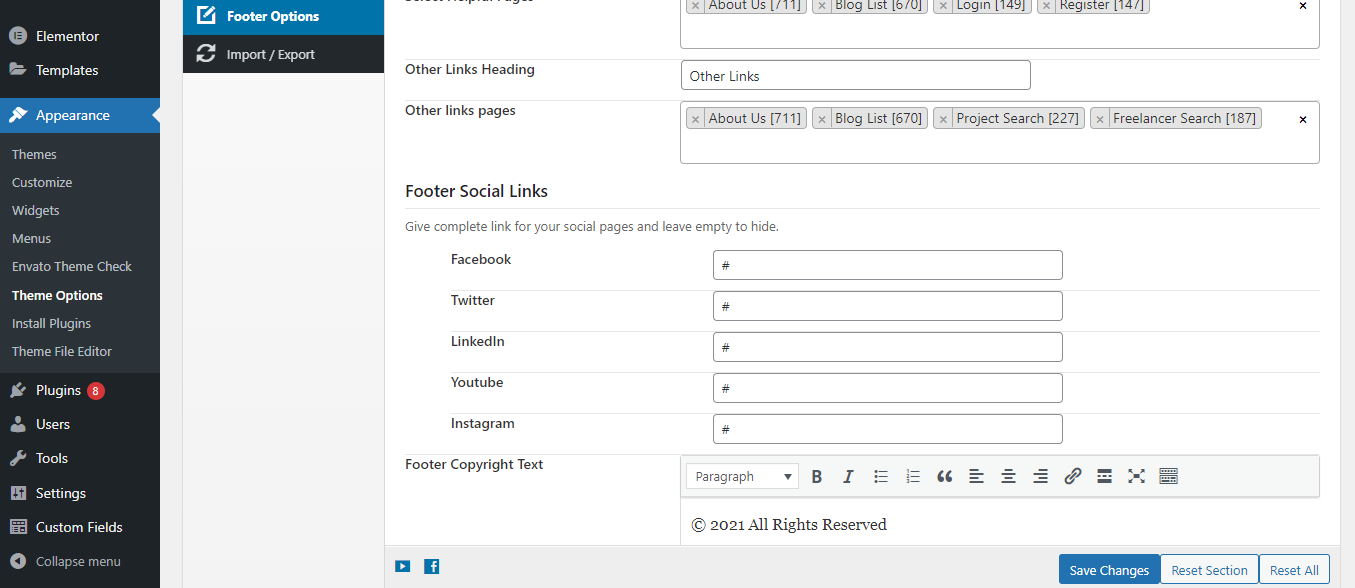
You can also add Social Links for Facebook, Twitter, LinkedIn, YouTube, and Instagram, and customize the Footer Copyright Text to complete your footer setup.
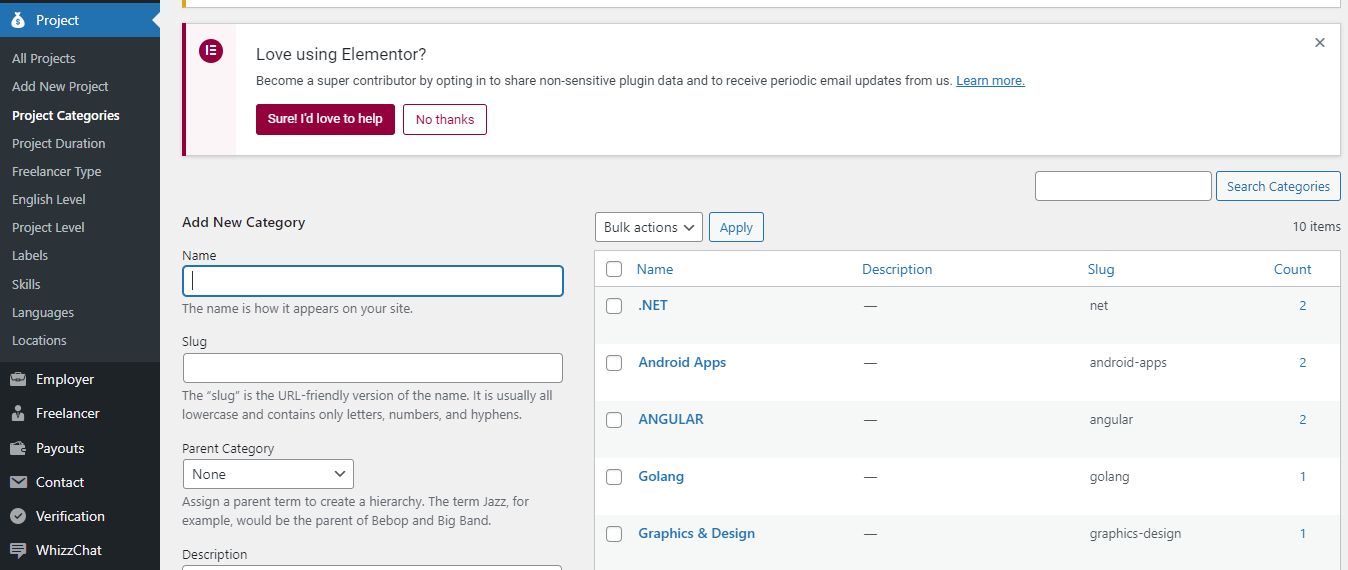
Admin can manage project categories from the Project → Project Categories section.
You can add a new category by entering the Name, Slug, and selecting a Parent Category to create a category hierarchy.
Each category displays the Name, Description, Slug, and Count of projects assigned to it.
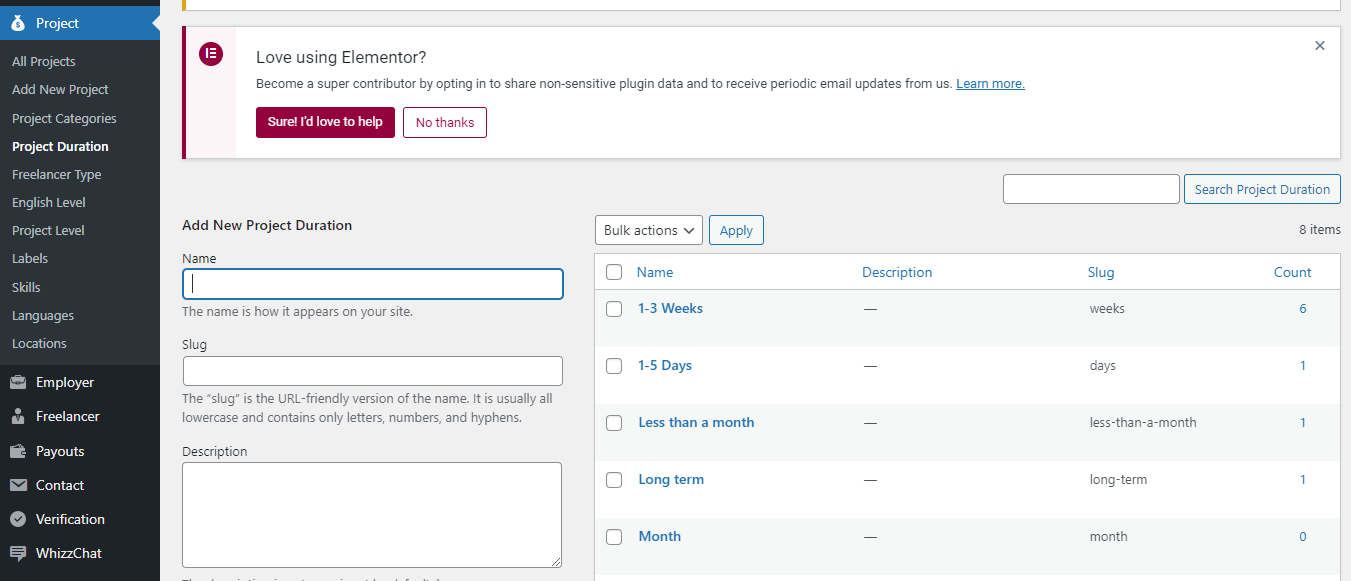
Admin can manage project durations from the Project → Project Duration section.
You can add a new duration by entering the Name, Slug, and Description to define different time frames for projects.
Each duration displays the Name, Description, Slug, and Count of projects associated with it.
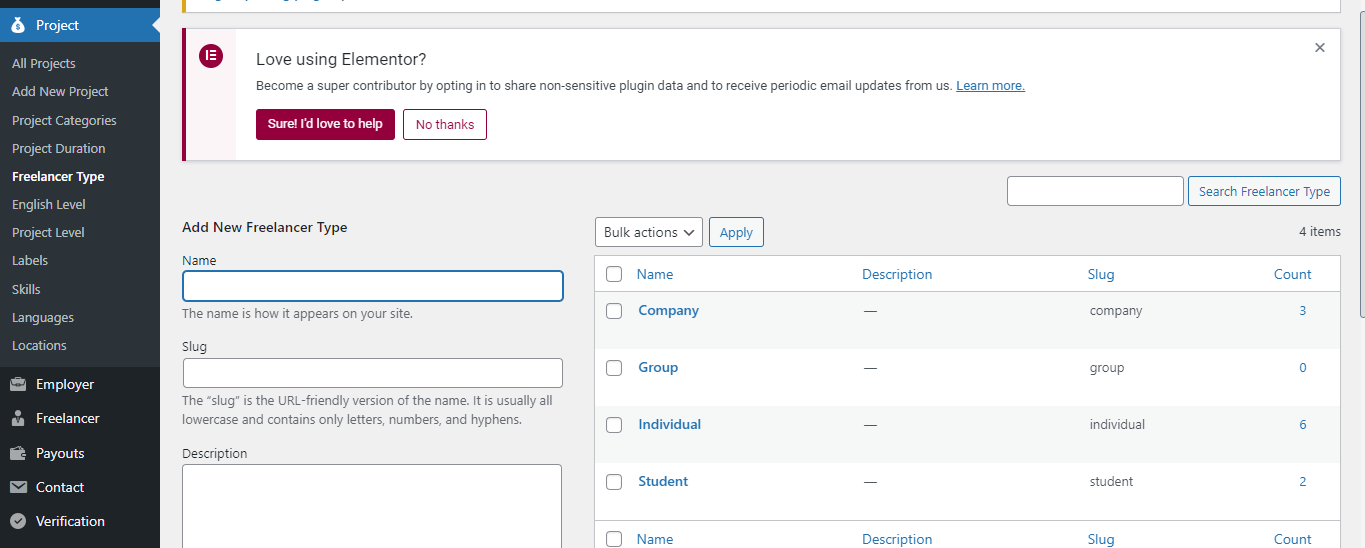
Admin can manage freelancer types from the Project → Freelancer Type section.
You can add a new freelancer type by entering the Name, Slug, and Description to categorize freelancers such as Company, Group, Individual, or Student.
Each type displays the Name, Description, Slug, and Count of freelancers associated with it.
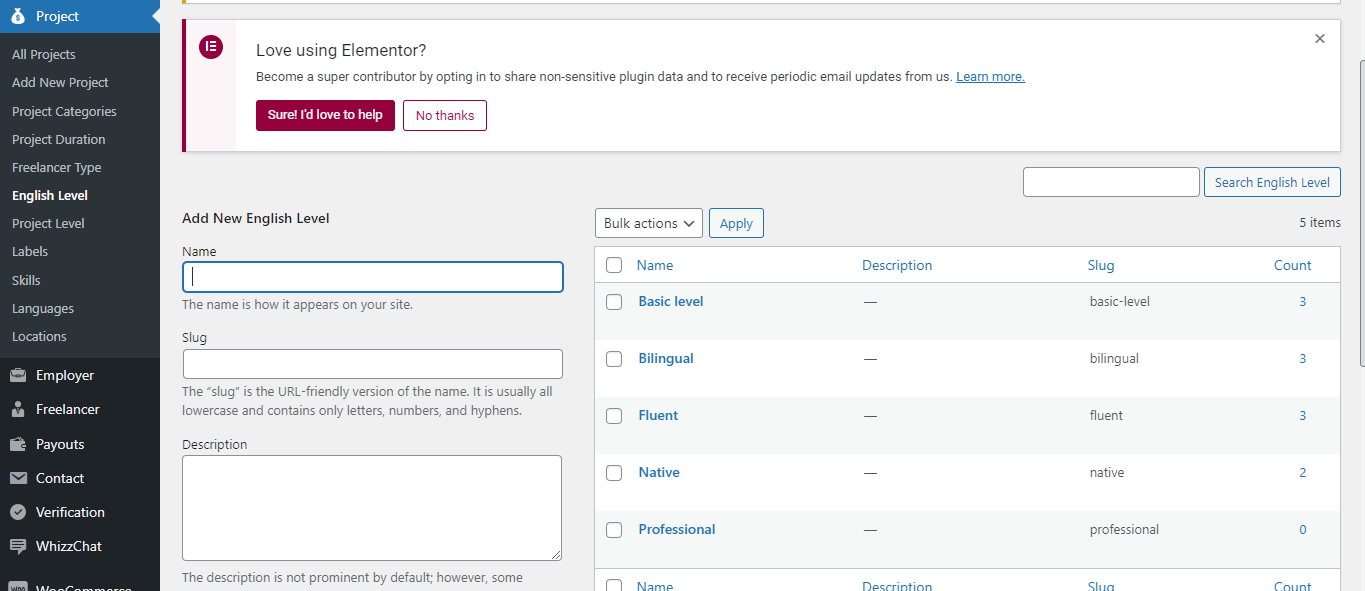
Admin can manage English levels from the Project → English Level section.
You can add a new English level by entering the Name, Slug, and Description to define proficiency levels such as Basic, Bilingual, Fluent, Native, or Professional.
Each level displays the Name, Description, Slug, and Count of freelancers associated with it.
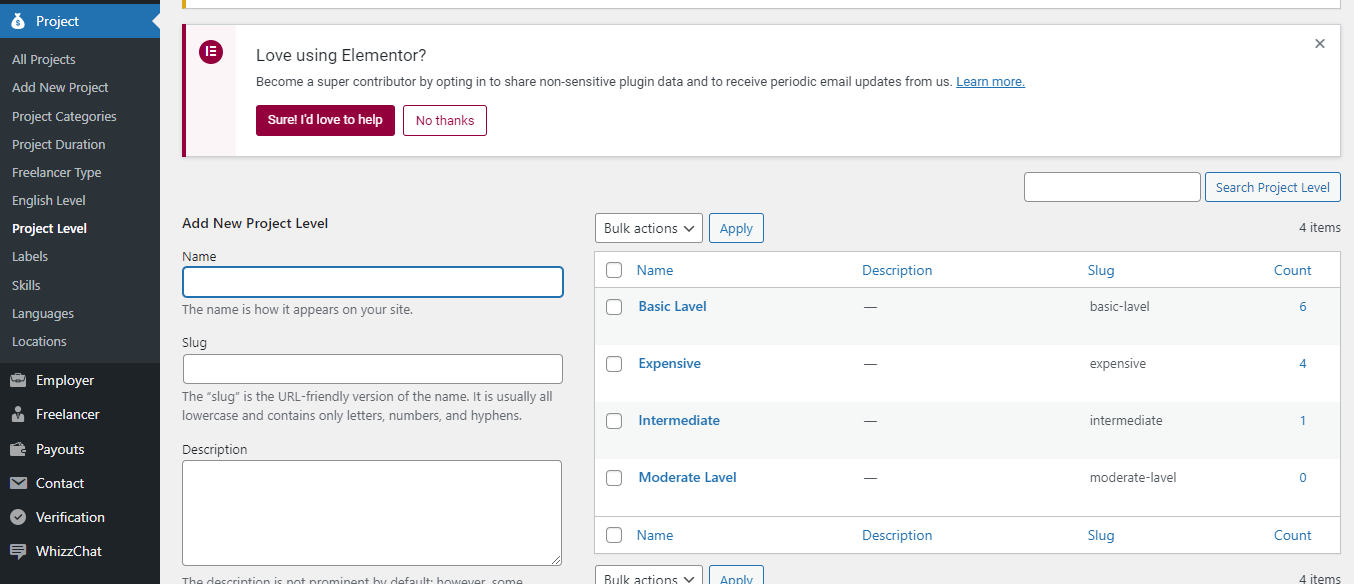
Admin can manage project levels from the Project → Project Level section.
You can add a new project level by entering the Name, Slug, and Description to define levels such as Basic, Intermediate, Moderate, or Expensive.
Each level displays the Name, Description, Slug, and Count of projects associated with it.
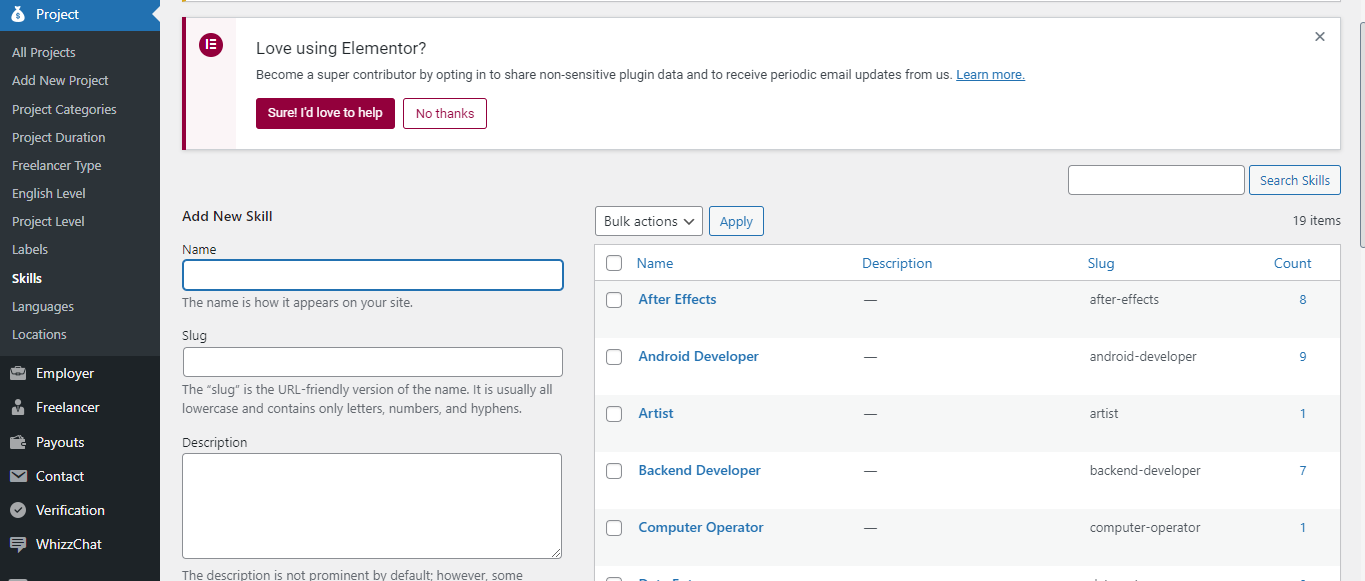
Admin can manage freelancer skills from the Project → Skills section.
You can add a new skill by entering the Name, Slug, and Description to define skills such as After Effects, Android Developer, Artist, or Backend Developer.
Each skill displays the Name, Description, Slug, and Count of freelancers associated with it.
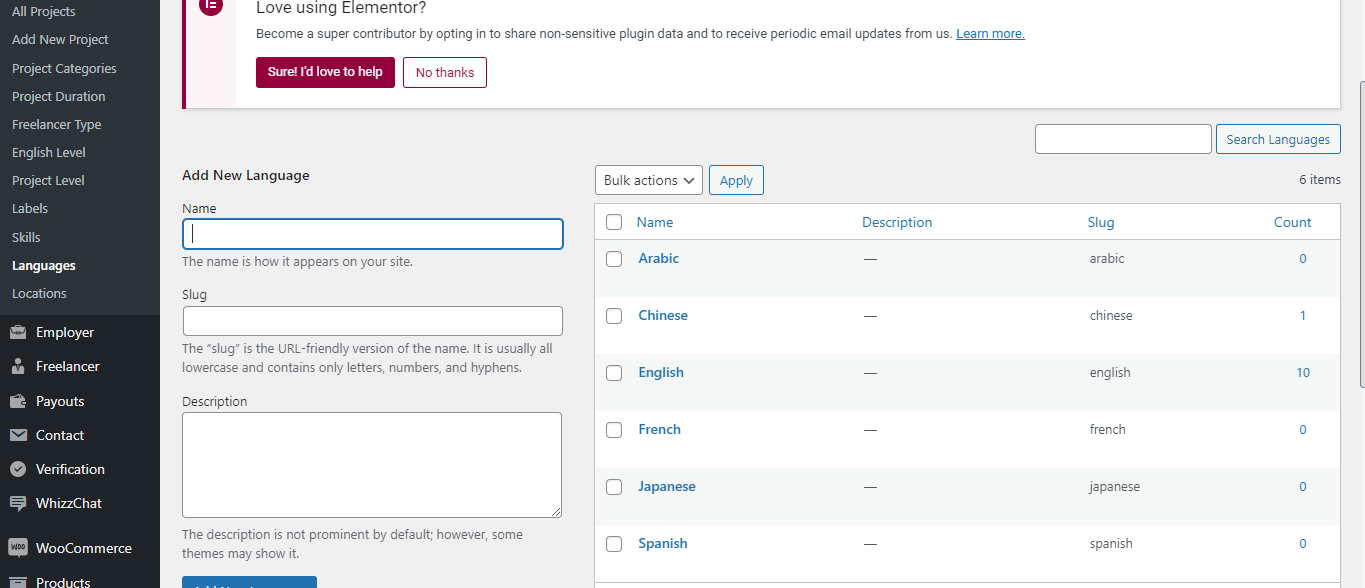
Admin can manage project languages from the Project → Languages section.
You can add a new language by entering the Name, Slug, and Description to define languages such as Arabic, Chinese, English, French, Japanese, or Spanish.
Each language displays the Name, Description, Slug, and Count of freelancers associated with it.
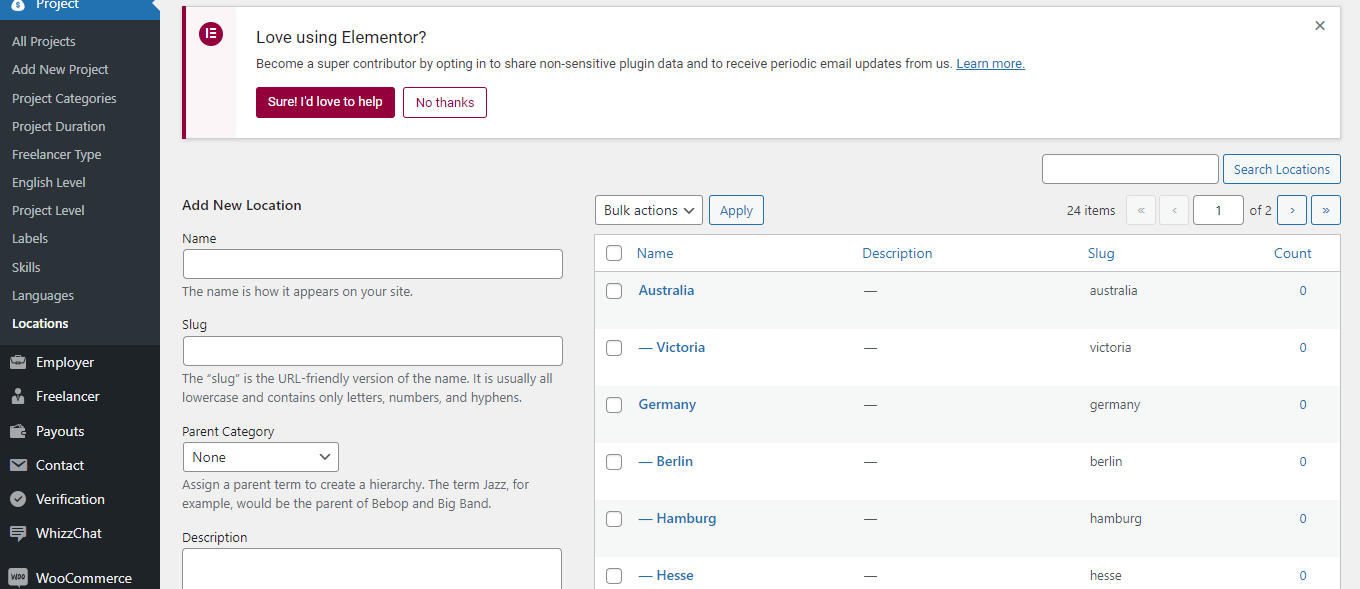
Admin can manage project locations from the Project → Locations section.
You can add a new location by entering the Name, Slug, and selecting a Parent Category to create a location hierarchy such as Country and City.
Each location displays the Name, Description, Slug, and Count of projects associated with it.
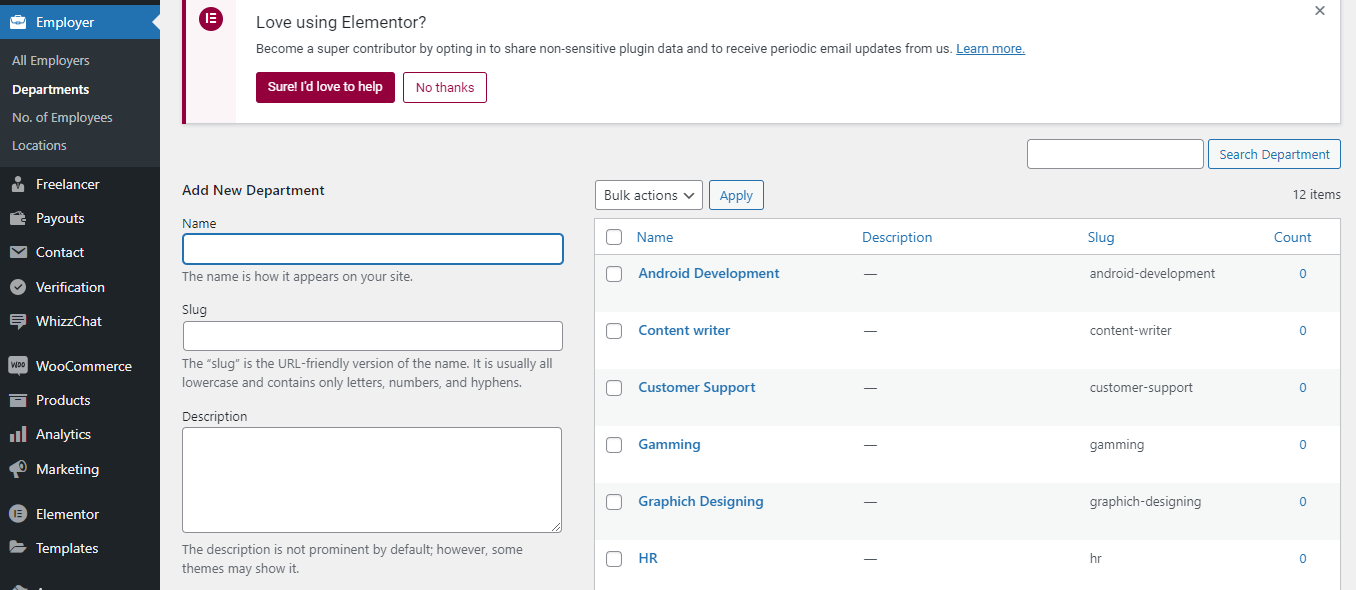
Admin can manage employer departments from the Employer → Departments section.
You can add a new department by entering the Name, Slug, and Description to define departments such as Android Development, Content Writer, Customer Support, or HR.
Each department displays the Name, Description, Slug, and Count of employers associated with it.
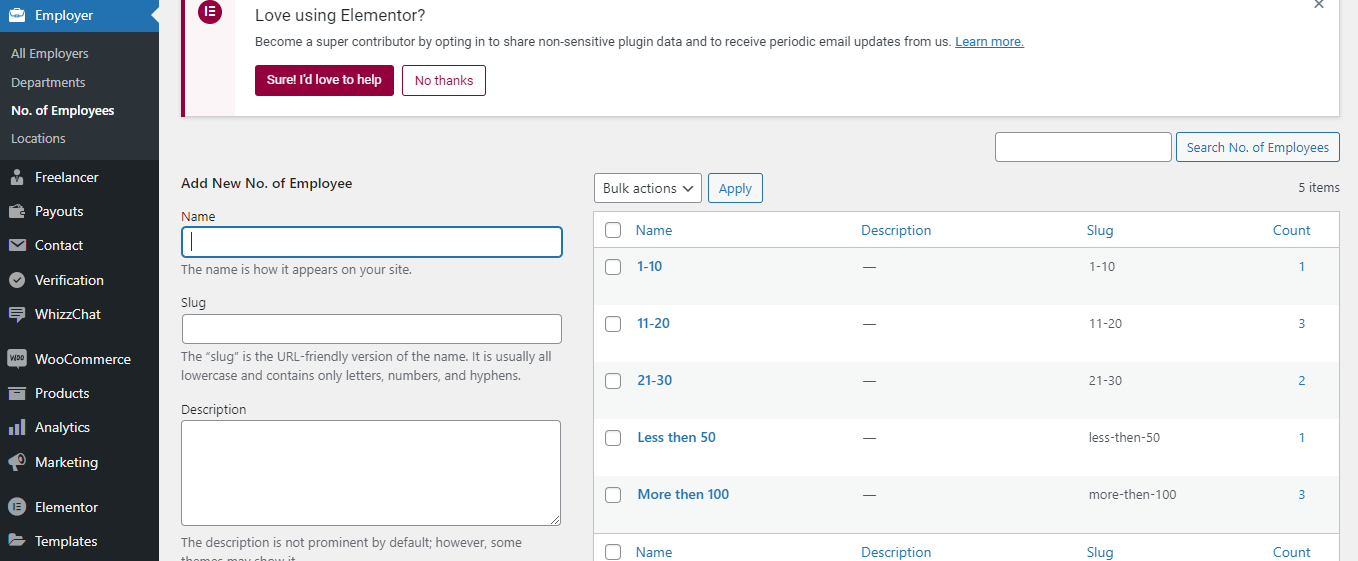
Admin can manage the number of employees ranges from the Employer → No. of Employees section.
You can add a new range by entering the Name, Slug, and Description to define ranges such as 1-10, 11-20, 21-30, Less than 50, or More than 100.
Each range displays the Name, Description, Slug, and Count of employers associated with it.
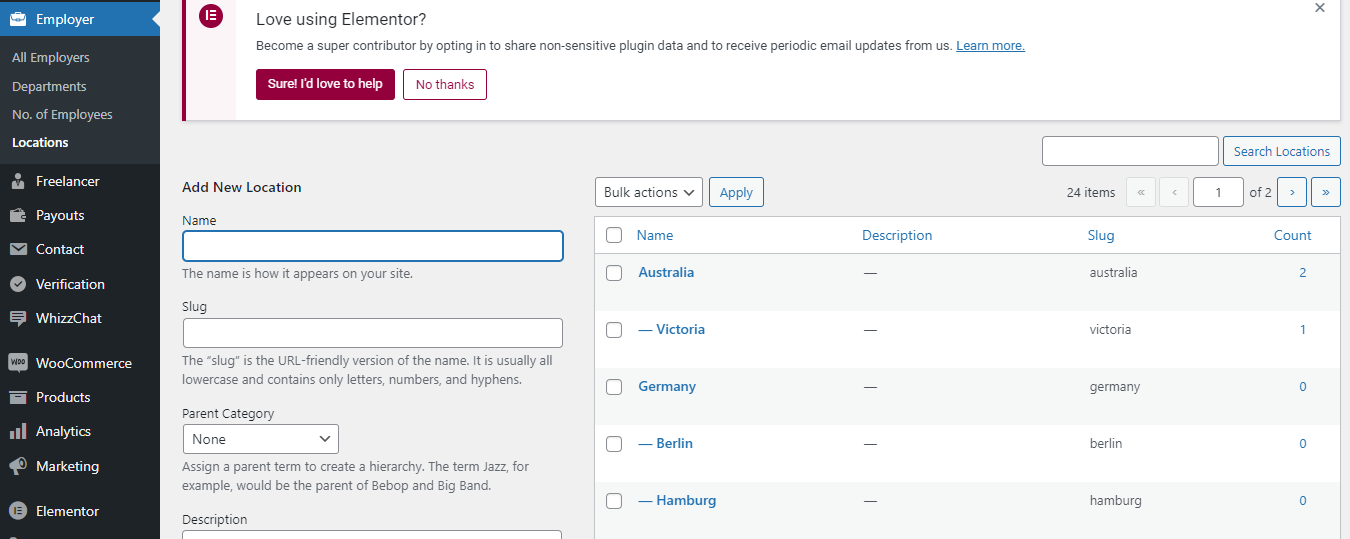
Admin can manage employer locations from the Employer → Locations section.
You can add a new location by entering the Name, Slug, and selecting a Parent Category to create a location hierarchy such as Country and City.
Each location displays the Name, Description, Slug, and Count of employers associated with it.
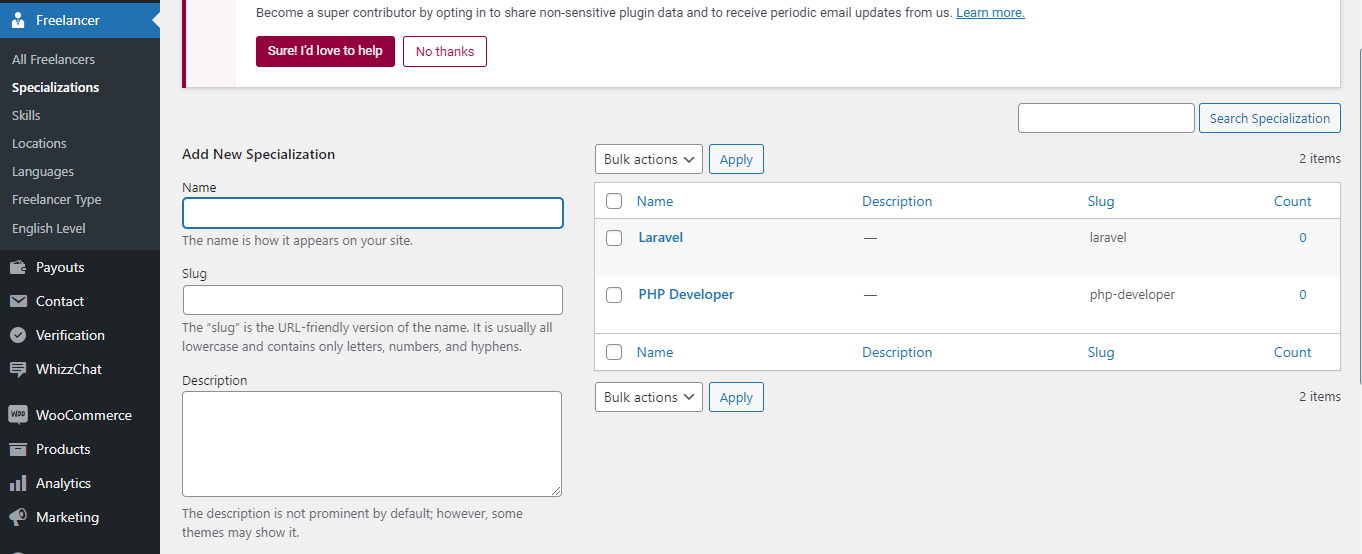
Admin can manage freelancer specializations from the Freelancer → Specializations section.
You can add a new specialization by entering the Name, Slug, and Description to define specializations such as Laravel or PHP Developer.
Each specialization displays the Name, Description, Slug, and Count of freelancers associated with it.
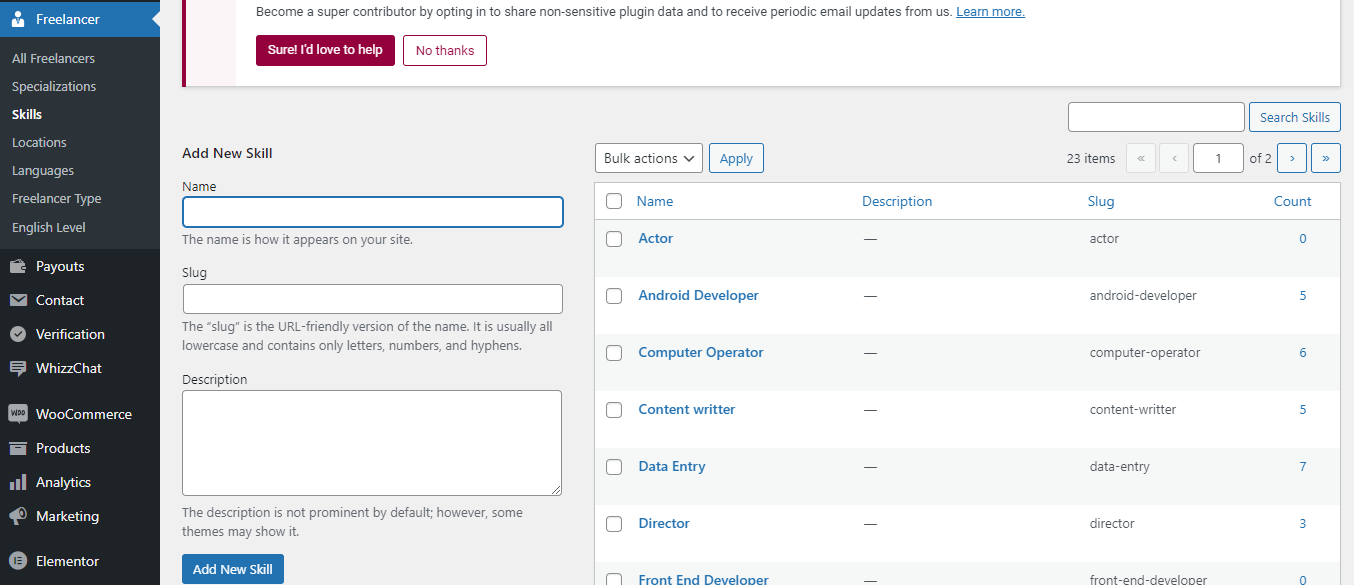
Admin can manage freelancer skills from the Freelancer → Skills section.
You can add a new skill by entering the Name, Slug, and Description to define skills such as Android Developer, Computer Operator, Content Writer, Data Entry, or Director.
Each skill displays the Name, Description, Slug, and Count of freelancers associated with it.
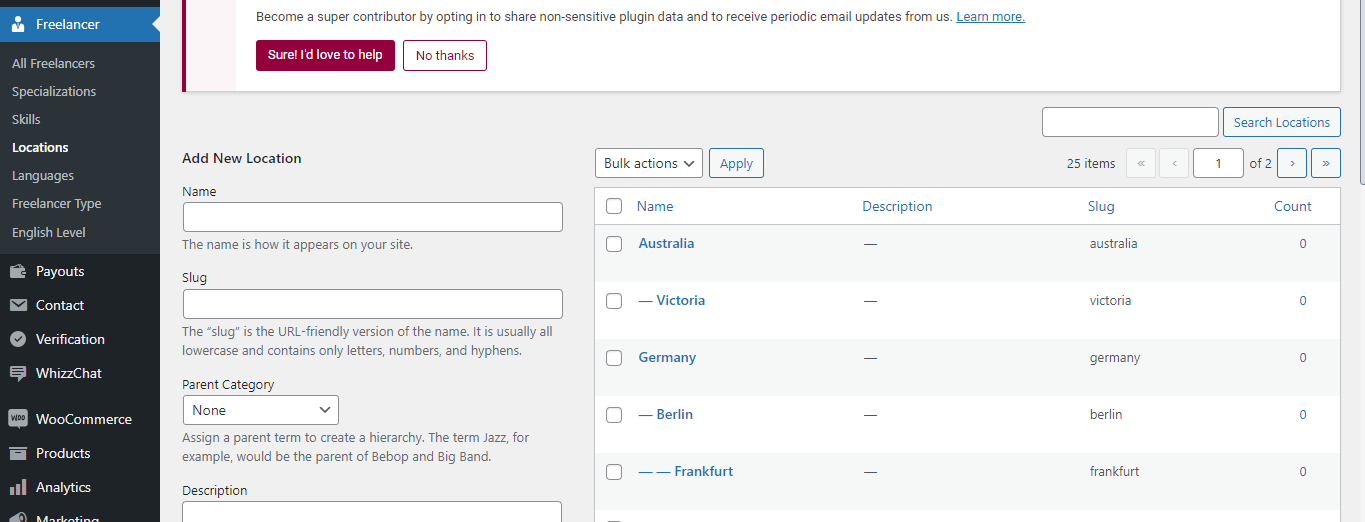
Admin can manage freelancer locations from the Freelancer → Locations section.
You can add a new location by entering the Name, Slug, and selecting a Parent Category to create a location hierarchy such as Country, State, and City.
Each location displays the Name, Description, Slug, and Count of freelancers associated with it.
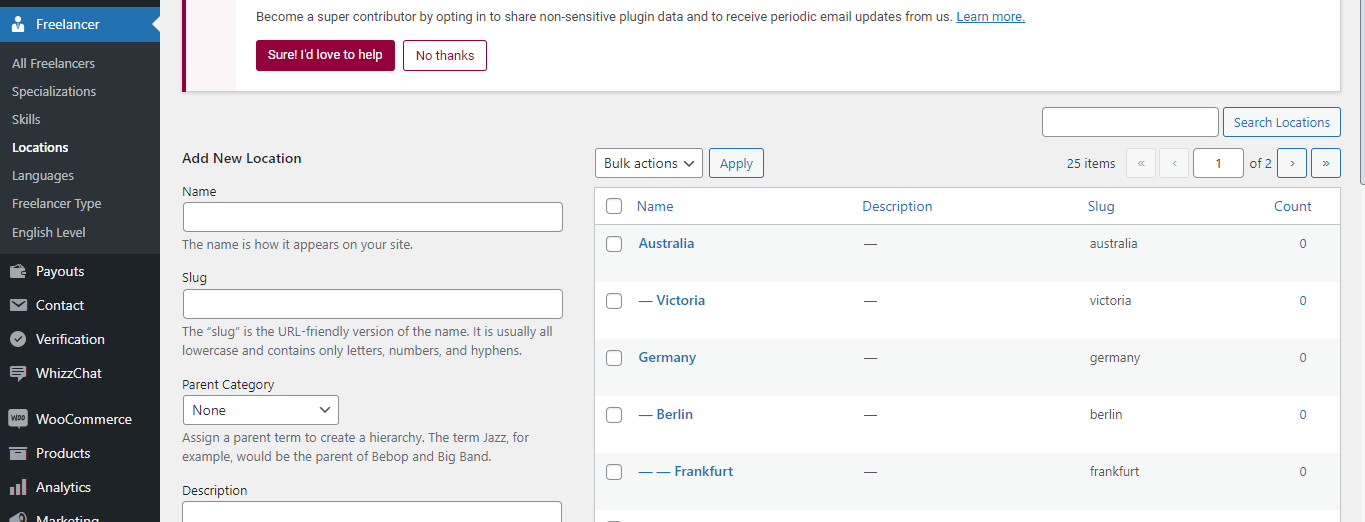
Admin can manage freelancer languages from the Freelancer → Languages section.
You can add a new language by entering the Name, Slug, and selecting a Parent Category to organize languages in a hierarchy if needed.
Each language displays the Name, Description, Slug, and Count of freelancers associated with it.
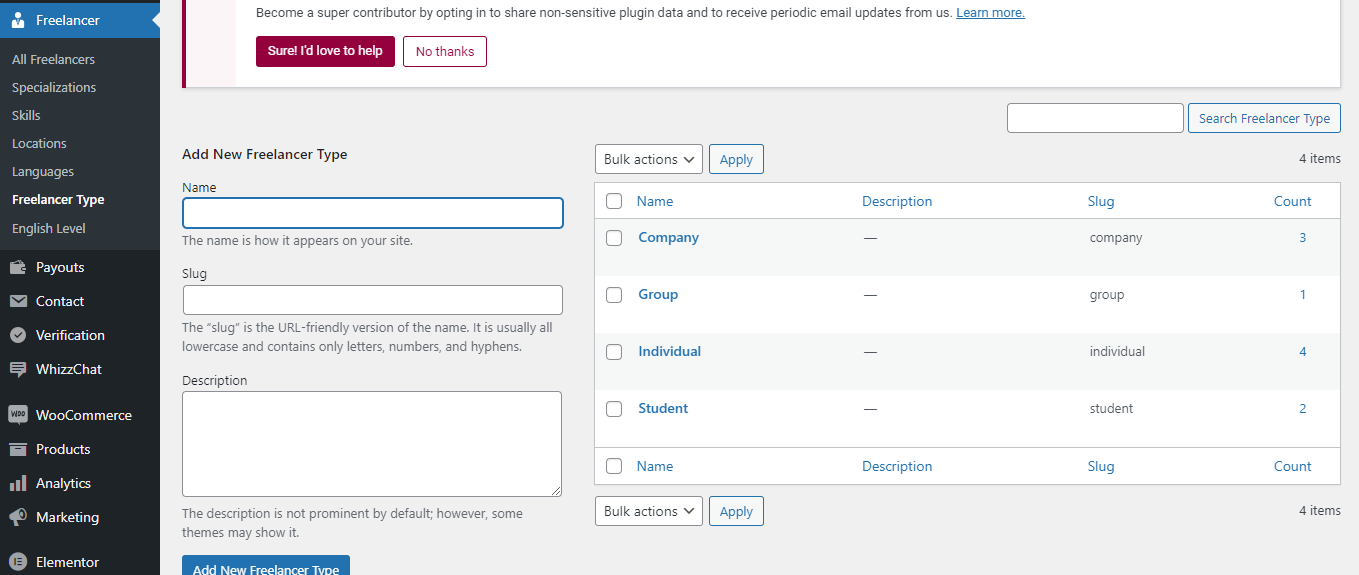
Admin can manage freelancer types from the Freelancer → Freelancer Type section.
You can add a new freelancer type by entering the Name, Slug, and Description to define types such as Company, Group, Individual, or Student.
Each type displays the Name, Description, Slug, and Count of freelancers associated with it.
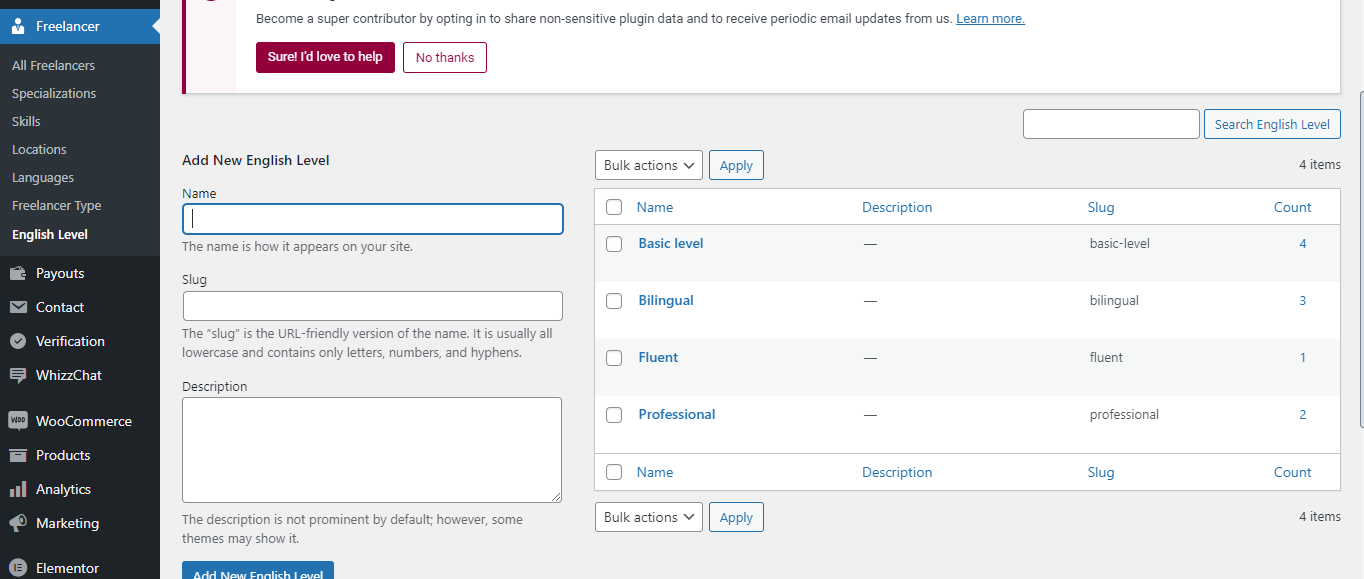
Admin can manage freelancer English levels from the Freelancer → English Level section.
You can add a new English level by entering the Name, Slug, and Description to define proficiency levels such as Basic, Bilingual, Fluent, or Professional.
Each level displays the Name, Description, Slug, and Count of freelancers associated with it.
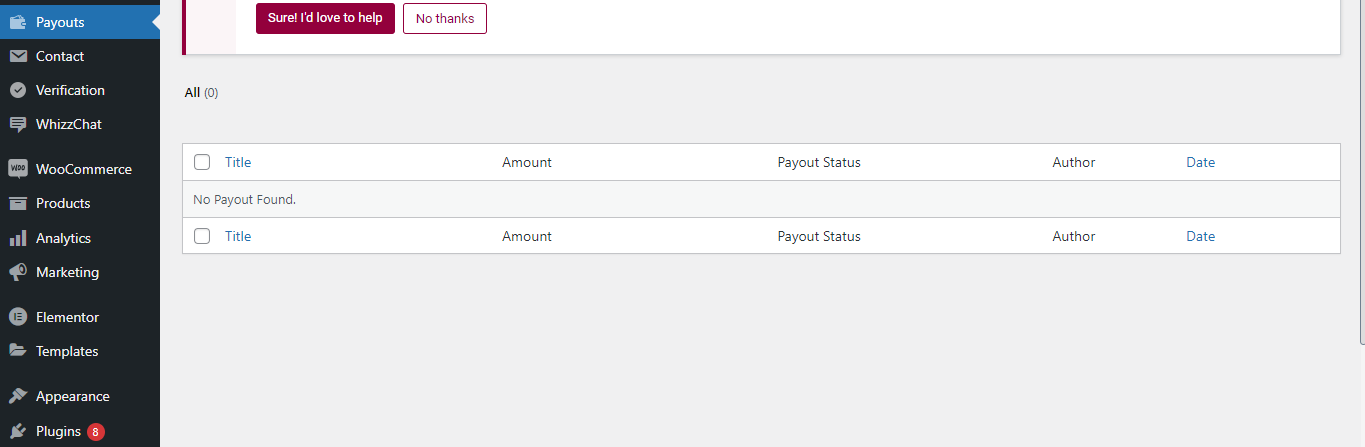
Admin can view and manage all payouts from the Payouts section in the WordPress dashboard.
Each payout record displays the Title, Amount, Payout Status, Author, and Date for easy tracking and management.
Admin can monitor all freelancer payout requests and their current status from this section to ensure timely payments.
WooCommerce Version: This theme requires WooCommerce 8.0 or higher. All booking appointments are processed as WooCommerce cart items, allowing you to use any WooCommerce-compatible payment gateway.
How the Integration Works: When a customer completes the booking flow and clicks Add to Cart, the appointment details are attached to a WooCommerce cart item. The customer then proceeds through the standard WooCommerce checkout. On payment confirmation, the booking status is automatically updated to Confirmed and notification emails are dispatched.
Appointment Booking Process:
- Customer selects a service, staff member, date, and time slot.
- Customer clicks the Add to Cart button to add the appointment to the WooCommerce cart.
- Customer completes checkout using any configured payment gateway.
- On successful payment, the booking is confirmed and both the customer and staff receive a notification email.
Payment gateways can be configured under WooCommerce → Settings → Payments. Commonly used gateways:
- PayPal Standard – general information on PayPal payment setup.
- Stripe – general information on Stripe payment setup.
- Razorpay – general information on Razorpay payment setup.
This theme is compatible with WooCommerce High-Performance Order Storage (HPOS). Ensure HPOS is enabled under WooCommerce → Settings → Advanced → Features for best performance.
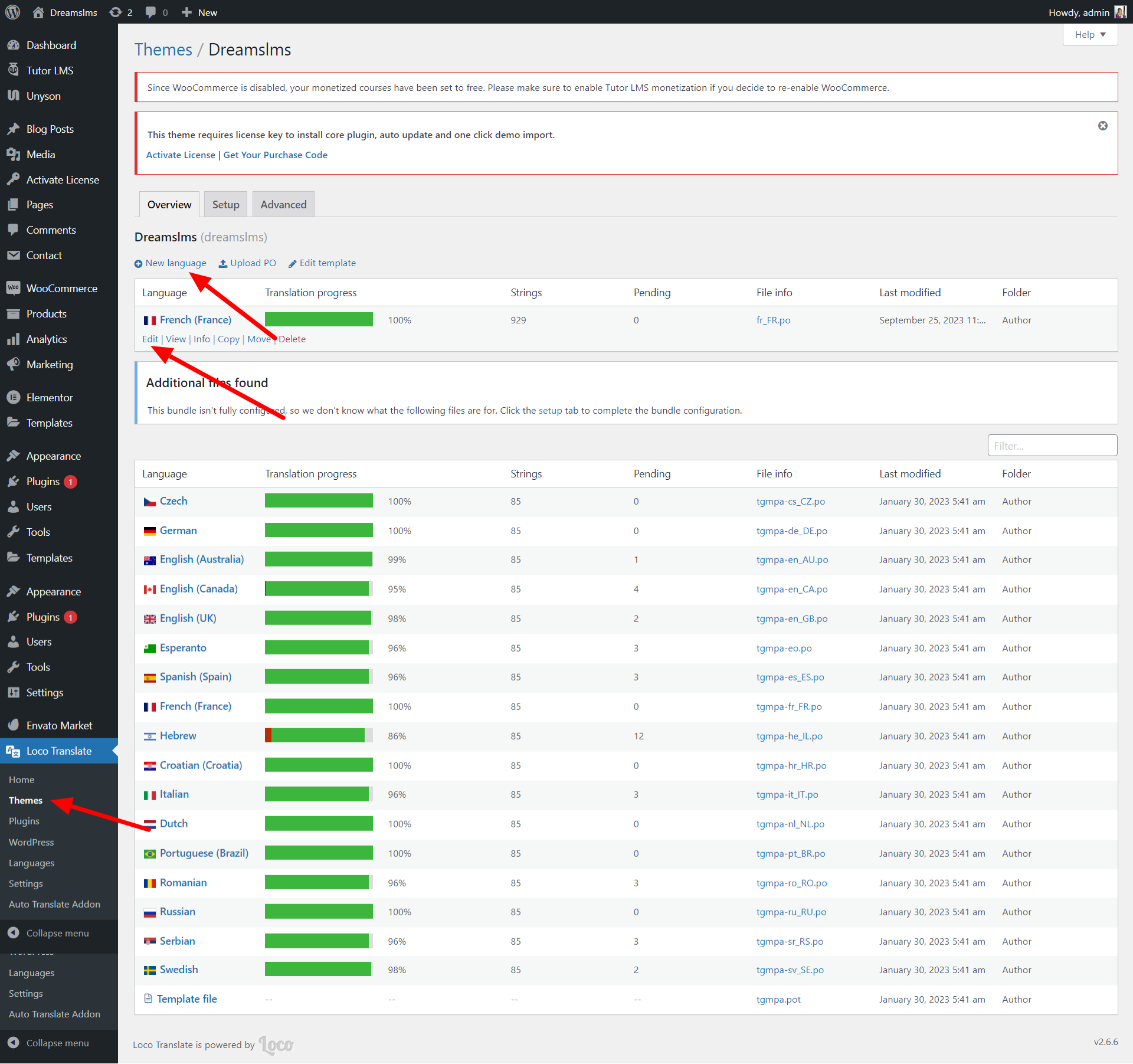
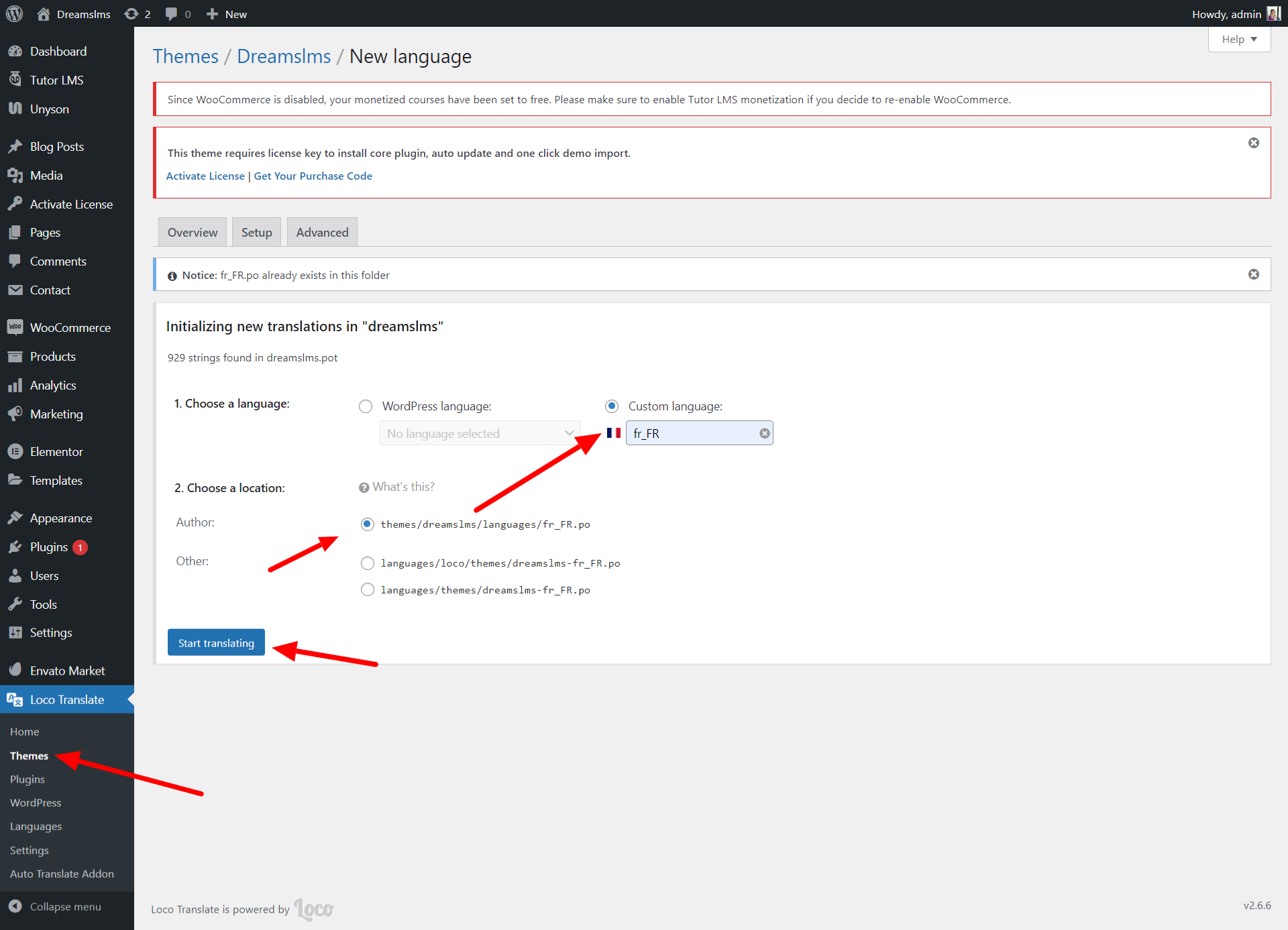
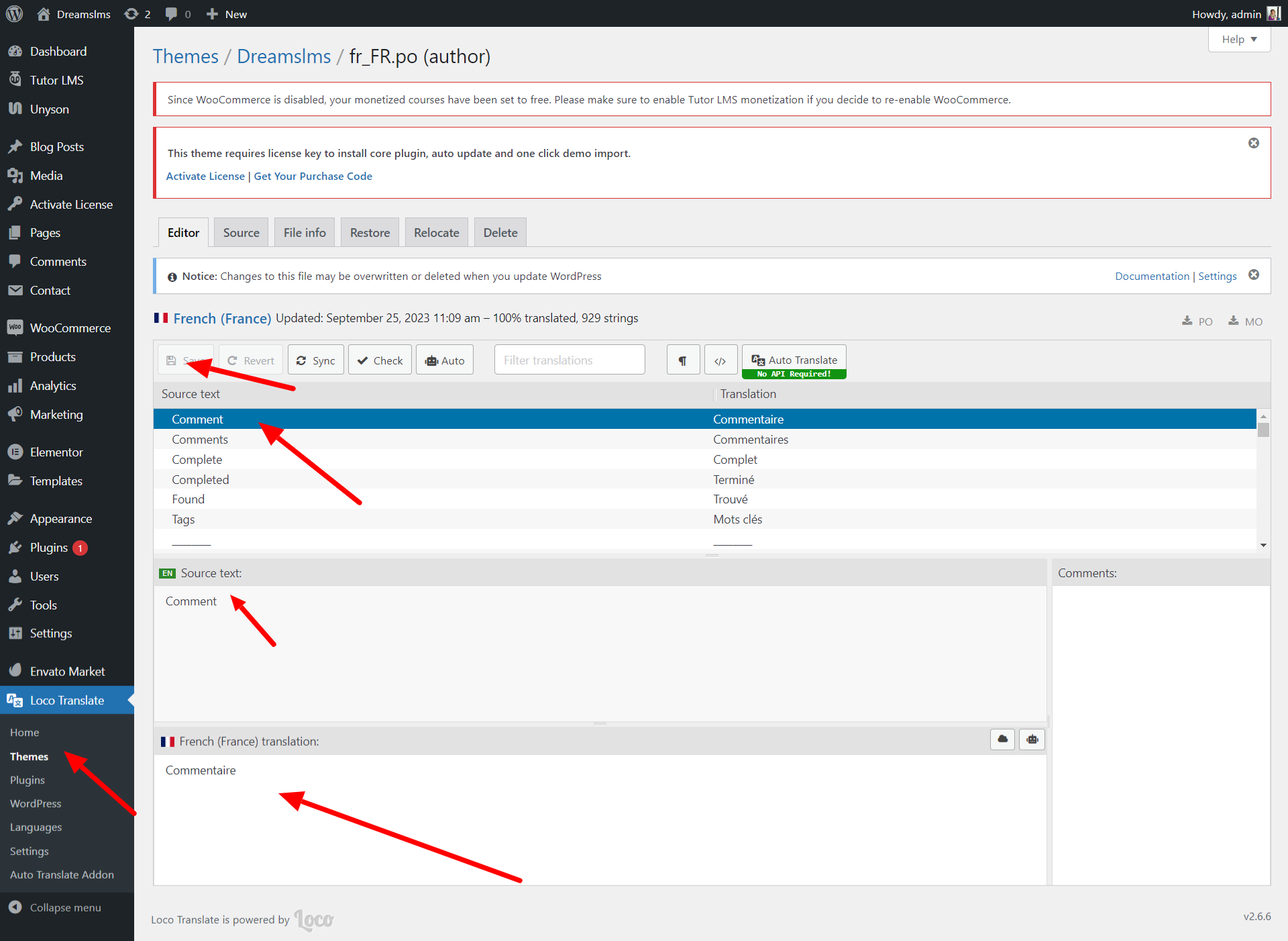
You can manage the wordpress language settings.
Step 1 : Please install Loco Translate Click here
Step 2 : Translate your theme
Step 3 : Translate your theme required plugins same like theme
Note : Please refer the right side image for your reference
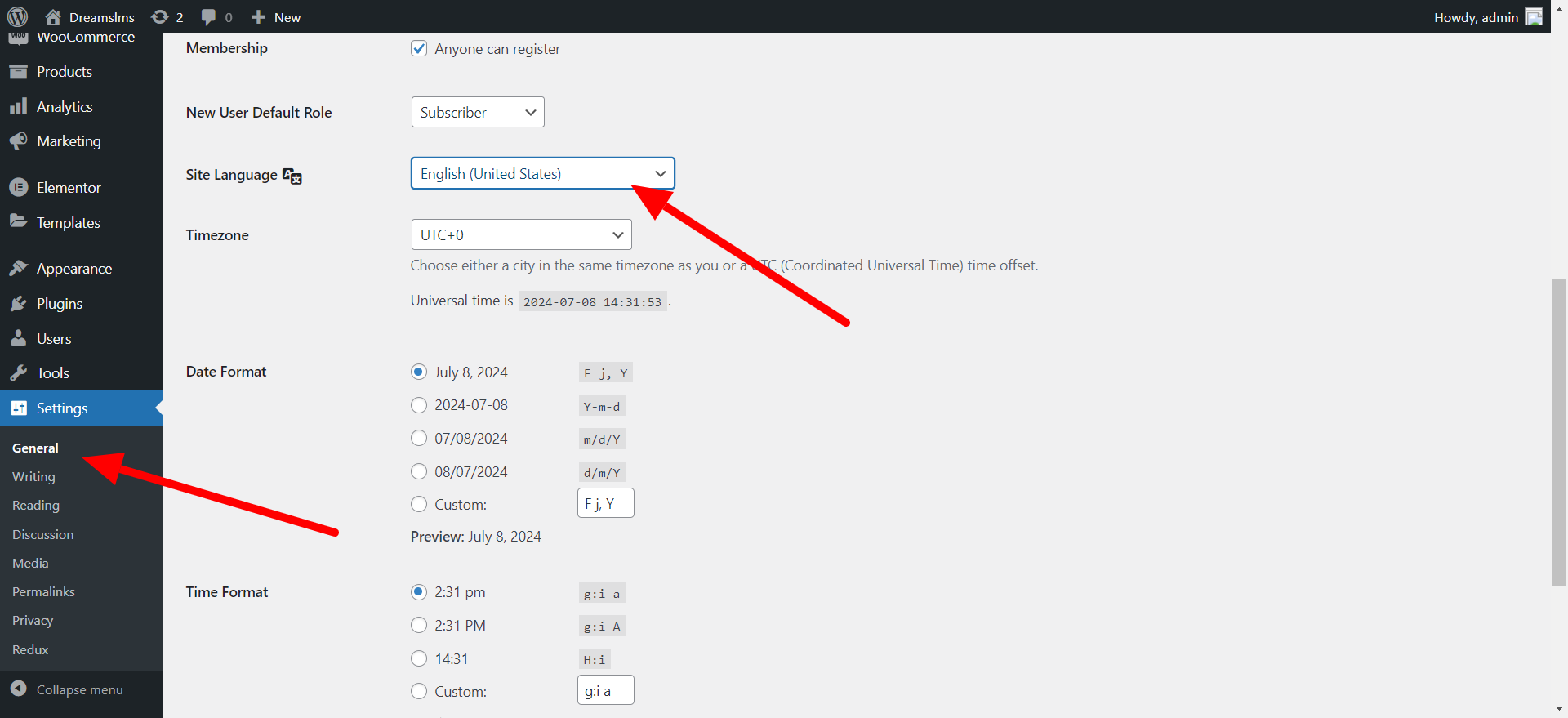
You can enable RTL (Right to Left) layout by navigating to Settings → General in your WordPress dashboard.
Under the Site Language dropdown, select an RTL language such as Arabic or Hebrew to automatically switch the site direction to right to left.
You can also configure the Timezone, Date Format, and Time Format from the same General Settings section.
1. Demo content import fails or times out
This is almost always a server resource limitation. Try the following:
- Add
define( 'WP_MEMORY_LIMIT', '512M' );to yourwp-config.phpbefore the line "That's all, stop editing!". - Ask your host to increase
max_execution_timeto 300 andupload_max_filesizeto 256M. - Ensure all 7 required plugins are installed and activated before running the import.
- Re-run the import from Appearance → Import Demo Data.
- If images are missing after import, go to Tools → Import → WordPress and re-run the WordPress importer choosing to download and import attachments.
2. Booking confirmation emails are not being sent
WordPress uses PHP's mail() function by default, which many hosts block. To fix this:
- Install a free SMTP plugin such as WP Mail SMTP.
- Configure it with your email provider's SMTP credentials (Gmail, SendGrid, Mailgun, etc.).
- Use the plugin's Test Email feature to confirm delivery.
- Check your spam folder — some hosts deliver to spam before SMTP is configured.
3. Payment is not processing / WooCommerce errors
- Confirm WooCommerce is installed and active (version 8.0 or higher).
- Go to WooCommerce → Settings → Payments and ensure at least one payment gateway is enabled and configured.
- If using Stripe, ensure your API keys are entered and the gateway is set to Live mode (not Test) for real transactions.
- Check WooCommerce → Status → Logs for error messages related to payment failures.
4. Booking or Dashboard pages return a 404 error
This is almost always a permalink issue. Fix it by:
- Going to Settings → Permalinks in WordPress Admin.
- Without changing any settings, click Save Changes. This flushes the rewrite rules.
- If the issue persists, confirm the correct page is assigned under Appearance → Theme Options → Service.
5. PHP memory or white screen errors
- Add
define( 'WP_DEBUG', true );anddefine( 'WP_DEBUG_LOG', true );towp-config.phpto enable logging. Check the log atwp-content/debug.log. - Increase PHP memory: add
define( 'WP_MEMORY_LIMIT', '512M' );towp-config.php. - Deactivate all non-DreamSalon plugins one by one to check for plugin conflicts.
- Switch temporarily to a default WordPress theme (e.g., Twenty Twenty-Four) to rule out theme-level conflicts.
6. Elementor icons not rendering correctly after demo import
Go to Elementor → Settings → Features Tab → Inline Font Icons and change the setting from DEFAULT to INACTIVE. This must be done after every demo import.
DreamSalon is developed by Dreams Technologies and is available under both Envato Extended & Regular License options.
Regular License
Usage by either yourself or a single client is permitted for a single end product, provided that end users are not subject to any charges.
Extended License
For use by you or one client in a single end product for which end users may be charged.
What are the main differences between the Regular License and the Extended License?
If you operate as a freelancer or agency, you have the option to acquire the Extended License, which permits you to utilize the item across multiple projects on behalf of your clients.
| NAME | URL |
|---|---|
| Bootstrap | https://getbootstrap.com/docs/ |
| jQuery | https://jquery.com/ |
| Fontawesome | https://fontawesome.com/ |
| Select2 | https://github.com/select2/select2 |
| Date Timepicker | https://cdnjs.com/libraries/jquery-datetimepicker |
| Google Fonts | https://fonts.google.com/ |
| Fancy Box | http://fancybox.net/ |
| Moment JS | https://momentjs.com/ |
| theia-sticky-sidebar | https://github.com/WeCodePixels/theia-sticky-sidebar |
| Range-Slider | https://ionicframework.com/docs/api/range |
Need Support?
If this documentation does not address your questions, please feel free to contact us via email at support@dreamstechnologies.com
Reach the team at GMT+5:30. Typical reply within 12–24 hours on weekdays — rarely up to 48 hrs during holidays. Support is available to verified buyers for template-related issues.
Contact SupportImportant Note : We strive to offer top-notch support, but it's only available to verified buyers and for template-related issues such as bugs and errors. Custom changes and third-party module setups are not covered.
Do you need a customized application for your business?
If you need a customized application for your business depends on your specific requirements and goals, Please contact us. Customization can be the key to success, ensuring your project perfectly aligns with your unique goals and requirements.
Don't Miss Out on the Benefits of Customization!
Unlock the potential of your project. It's time to ensure your project isn't another cookie-cutter solution but truly unique and effective one.
Discover how customization can make a difference in your project's success. Let's create a solution that's as unique as your vision!
We'll tailor the application to meet your specific needs and preferences.
We will upload your website to the server and ensure it is live.

Thank You
Thank you once again for downloading kofejob.
We hope you're enjoying your experience, and we kindly request that you take a moment to share your valuable review and rating with us.